AppAudioConfig: Control Audio Settings for Multiple Apps Simultaneously
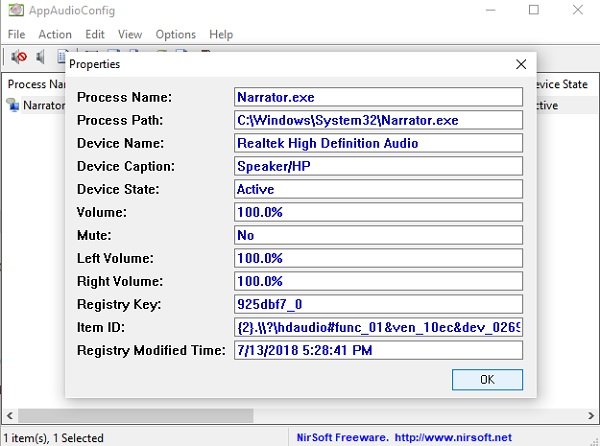
Managing audio levels for various applications on your Windows system can sometimes become a cumbersome task. While Windows offers the ability to adjust volume for individual programs, these adjustments are typically made while the application is running. These settings are conveniently saved, ensuring that the next time you launch the application, your preferred volume level is automatically restored. However, for users who frequently juggle multiple audio sources, the need to adjust volumes individually for each application can be inefficient.
Streamlining Audio Management with AppAudioConfig
Imagine a scenario where you are using a music player, a video conferencing application, and a web browser simultaneously, each producing audio. Individually tweaking the volume of each application through the system’s volume mixer can be time-consuming and disruptive, especially if you need to make frequent adjustments. This is where AppAudioConfig emerges as a practical solution. This compact, free utility is designed to centralize and simplify the management of audio settings for all your applications, regardless of their active status.
AppAudioConfig provides a user-friendly interface that lists all applications capable of producing sound, allowing you to adjust their volume levels from a single location. Whether an application is currently running or not, you can effortlessly modify its audio settings. This capability extends beyond just music players; AppAudioConfig can manage the sound settings for any application that generates audio output, offering comprehensive control over your system’s audio landscape.
Effortless Setup and Operation
One of the notable advantages of AppAudioConfig is its simplicity and ease of use. The program is designed to be portable, meaning it does not require a traditional installation process. You can simply download the executable file and run it directly. Upon launching, AppAudioConfig intelligently retrieves your existing volume settings from the Windows Registry, where they are stored by default. This data is then presented in a clear and organized list within the application’s interface.
This streamlined approach eliminates the need for complex configurations or technical expertise. The intuitive interface makes it accessible to users of all levels, from novice to advanced. Navigating AppAudioConfig is straightforward, allowing you to quickly locate and adjust the volume settings for any application listed. The program’s design prioritizes user experience, ensuring that managing application audio volumes is a seamless and efficient process.
Key Features and Functionality
AppAudioConfig is packed with features designed to enhance your audio management experience:
-
Centralized Volume Control: The primary function of AppAudioConfig is to provide a centralized location for managing the volume of all applications on your system. This eliminates the need to navigate through individual application settings or the system’s volume mixer for each adjustment.
-
Inactive Application Adjustment: Unlike the standard Windows volume mixer, AppAudioConfig allows you to adjust the volume settings of applications even when they are not currently running. This is particularly useful for pre-setting volume levels for applications you plan to use later.
-
Process Listing and Search: AppAudioConfig automatically detects and lists all registered processes capable of producing audio. For systems with a large number of applications, a built-in search function allows you to quickly locate specific applications within the list, saving time and effort.
-
Mute/Unmute Functionality: In addition to volume adjustment, AppAudioConfig provides a simple mute/unmute option for each application. This feature enables you to quickly silence or enable audio output for specific programs as needed.
-
Customizable Interface: AppAudioConfig offers options to customize the visual presentation of the application list. Users can choose to highlight even or odd rows, improving readability and visual organization. The option to enable a grid view further enhances the structured presentation of the application list and settings.
-
Hotkeys for Volume Control: For users who prefer keyboard shortcuts, AppAudioConfig supports hotkeys for volume adjustments. This allows for rapid volume control without needing to interact directly with the application’s interface. This feature is beneficial for quickly adjusting volumes during tasks that require focused attention.
-
Multi-Language Support: AppAudioConfig caters to a global user base with support for 11 languages. This localization ensures that users can interact with the application in their preferred language, enhancing usability and accessibility. The supported languages include Dutch, German, French, Greek, Italian, Polish, Portuguese (Brazil), Romanian, Russian, Simplified Chinese, and Slovak.
Step-by-Step Guide to Using AppAudioConfig
Using AppAudioConfig is a straightforward process:
-
Download: Obtain the AppAudioConfig utility from a reputable source. As it is portable software, there is no installation required.
-
Launch: Run the
AppAudioConfig.exefile. The main window will appear, displaying a list of all applications with registered audio processes. -
Application Selection: Scroll through the list or use the search function to find the application for which you want to adjust the volume.
-
Volume Adjustment: Use the slider next to the application name to adjust the volume level. You can also click the mute icon to silence the application’s audio output entirely.
-
Hotkey Usage (Optional): Explore the hotkey settings (if available) to control volume using keyboard shortcuts for even faster adjustments.
-
Customization (Optional): Customize the view by enabling grid lines or alternating row colors for improved visual clarity.
Expanding Language Support
AppAudioConfig’s multi-language support makes it accessible to a wider range of users. To utilize a language other than the default, follow these steps:
-
Download Language Pack: Download the specific language zip file corresponding to your desired language.
-
Run with
/savelangfileParameter: Execute AppAudioConfig with the/savelangfileparameter. This is done through the command line or by creating a shortcut and adding the parameter to the target path. For example:AppAudioConfig.exe /savelangfile. -
Locate
AppAudioConfig_lng.ini: This command will generate a file namedAppAudioConfig_lng.iniin the same directory as theAppAudioConfig.exefile. -
Edit
AppAudioConfig_lng.ini: Open theAppAudioConfig_lng.inifile using a text editor such as Notepad. This file contains all the text strings used within the AppAudioConfig application. -
Translate Strings: Translate the English strings in the file into your desired language. Ensure that you maintain the file format and only modify the text values.
-
Run AppAudioConfig: Once the translation is complete and saved, run
AppAudioConfig.exenormally. The application will automatically detect and load the translated strings from theAppAudioConfig_lng.inifile, displaying the interface in your chosen language.
AppAudioConfig: A Practical Audio Utility
| Feature | Description | Benefit |
|---|---|---|
| Centralized Volume Control | Manages volume for all apps from one interface. | Streamlines audio management and saves time. |
| Inactive App Adjustment | Adjusts volume for apps not currently running. | Pre-sets volume levels for future use. |
| Process Listing & Search | Lists all audio-producing processes with a search function. | Easily locate and manage specific applications. |
| Mute/Unmute Functionality | Quick mute/unmute option for individual applications. | Instantly silence or enable audio output. |
| Customizable Interface | Options for grid view and row highlighting. | Improves visual clarity and organization. |
| Hotkey Support | Keyboard shortcuts for volume adjustment. | Rapid volume control without interface interaction. |
| Multi-Language Support | Supports 11 languages for global accessibility. | Enhances usability for users worldwide. |
| Portability | No installation required; run directly from executable. | Easy deployment and use without system modifications. |
| Registry-Based Settings | Leverages existing Windows Registry settings. | Seamless integration with system audio settings. |
| Lightweight & Free | Small footprint and available at no cost. | Minimal system resource usage and cost-effective solution. |
AppAudioConfig stands out as a valuable tool for anyone seeking enhanced control over their Windows audio environment. Its portability, ease of use, and comprehensive feature set make it an excellent addition to any user’s utility toolkit. Whether you are a gamer, a content creator, or simply a user who juggles multiple audio applications, AppAudioConfig offers a streamlined and efficient way to manage your audio landscape. Its ability to adjust volume settings for both active and inactive applications sets it apart from standard volume control methods, providing a level of flexibility and convenience that significantly improves the audio management experience on Windows.
Have you tried AppAudioConfig or a similar application for managing audio settings? Share your experiences and thoughts in the comments below!
Post a Comment