Boost Productivity: Seamlessly Integrate Google Keep Notes into Your Google Docs
In today’s fast-paced digital environment, efficiency and seamless workflows are paramount for maximizing productivity. Google Workspace offers a suite of tools designed to enhance collaboration and streamline tasks. Among these tools, Google Keep stands out as a versatile note-taking application, allowing users to capture ideas, create lists, and organize thoughts effectively. Recognizing the need for a more integrated experience, Google has introduced a feature that bridges the gap between Google Keep and Google Docs, enabling users to effortlessly incorporate their notes directly into documents. This integration promises to revolutionize the way users manage information and create content within the Google ecosystem.
Adding Google Keep Notes to Google Docs
The integration of Google Keep with Google Docs simplifies the process of incorporating notes into your documents, eliminating the need to switch between applications or manually copy and paste information. This feature is designed to be intuitive and user-friendly, ensuring a smooth transition for both novice and experienced Google Workspace users. By leveraging this integration, you can significantly enhance your workflow and maintain a focused approach to document creation.
Step-by-Step Guide to Integrate Notes
To begin using this powerful integration, follow these straightforward steps to bring your Google Keep notes directly into your Google Docs:
-
Open Google Docs: Initiate the process by launching the Google Docs application. You can access Google Docs through your web browser by navigating to the Google Docs website or by opening the Google Docs app on your mobile device. If you are starting a new project, click the ‘+’ button to create a new blank document. Alternatively, you can open an existing Google Doc where you intend to insert your Google Keep notes.
-
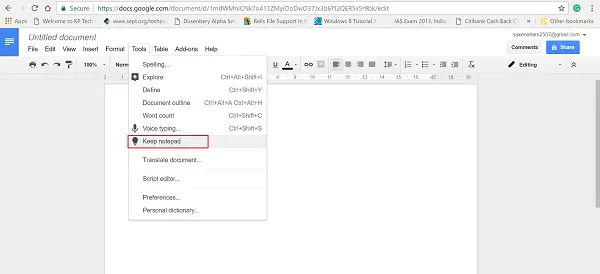
Access the Tools Menu: Once your Google Doc is open, locate the ‘Tools’ menu within the ribbon interface at the top of the document. Click on ‘Tools’ to reveal a dropdown menu containing various options designed to enhance your document editing capabilities.
-
Open Keep Notepad: In the ‘Tools’ dropdown menu, find and select the ‘Keep Notepad’ option. Selecting this option will activate the Google Keep integration and open a dedicated sidebar on the right side of your Google Docs window. This sidebar will display your Google Keep notes, ready for seamless integration.
-
Browse and Select Notes: The Keep Notepad sidebar presents a comprehensive list of your Google Keep notes, organized in a clear and accessible manner. By default, the notes are typically displayed in reverse chronological order, with the newest notes appearing at the top for easy access. You can scroll through your notes to locate the specific information you wish to add to your Google Doc. The search bar at the top of the Keep Notepad sidebar allows you to quickly find specific notes by keywords, labels, or content, further streamlining the selection process.
-
Insert Notes into Your Document: Once you have identified the desired Google Keep note, there are two primary methods to insert it into your Google Doc:
-
Drag and Drop: For a quick and intuitive approach, simply click on the Google Keep note card within the sidebar and drag it directly into your Google Doc. Position the note at the desired location within your document, and release the mouse button to drop it into place. This method is particularly useful for visually arranging notes within your document and maintaining a fluid workflow.
-
‘Add to document’ Option: Alternatively, you can click on the ‘3 dots menu’ (more options) located at the top right corner of each Google Keep note card within the sidebar. From the dropdown menu that appears, select the ‘Add to document’ option. This action will instantly insert the selected Google Keep note into your Google Doc at your current cursor location. This method is ideal for precise placement of notes and for users who prefer menu-based interactions.
-
-
Formatting Preservation: Regardless of the method you choose to insert your notes, Google Keep ensures that the formatting of your notes is preserved when transferred to Google Docs. This includes text styling (bold, italics, bullet points, lists, etc.), colors, and even images embedded within your notes. This feature maintains the integrity of your information and ensures visual consistency between your notes and your document.
By following these steps, you can seamlessly integrate your Google Keep notes into your Google Docs, creating a unified workspace for your thoughts, research, and document creation.
Alternative Method: Creating Notes Directly from Google Docs
Beyond importing existing notes, Google Docs also allows you to create new Google Keep notes directly from within your document, fostering a dynamic and interconnected workflow. This feature is particularly useful when you are working on a document and inspiration strikes, or when you want to capture specific text selections as notes for future reference.
To create a new note from Google Docs:
-
Highlight Text: Within your open Google Doc, identify the text that you want to save as a new Google Keep note. Use your cursor to highlight the relevant sentences, phrases, or paragraphs that you wish to capture.
-
Right-Click and Save to Keep: Once the text is highlighted, right-click anywhere within the highlighted selection. A context menu will appear, presenting various options related to text manipulation and document editing.
-
Select ‘Save to Keep notepad’: From the right-click context menu, locate and select the option ‘Save to Keep notepad‘. Clicking this option will instantly create a new Google Keep note containing the highlighted text. This new note will be automatically saved to your Google Keep account and will be readily accessible in your Keep Notepad sidebar within Google Docs, as well as in the Google Keep application itself.
-
Linked Notes: An important aspect of this feature is that the newly created Google Keep note is intelligently linked to the original Google Doc from which it was created. This link allows you to quickly navigate back to the source document from within Google Keep, providing valuable context and traceability for your notes.
This method of creating notes directly from Google Docs streamlines the process of capturing ideas and relevant information as you work, ensuring that your thoughts are readily accessible and organized within your Google Keep ecosystem.
Utilizing the Feature for Bookmarking and References
The integration between Google Keep and Google Docs extends beyond simple note insertion; it also offers a practical solution for bookmarking and managing references within your documents. This functionality is particularly beneficial for students, researchers, writers, and anyone who frequently works with source materials and needs to keep track of important links and resources.
When you use the ‘Add to document’ option from the Google Keep note menu, the integration intelligently inserts not only the content of the note but also a clickable link back to the original Google Keep note within your Google Doc. This link acts as a bookmark, allowing you to quickly jump back to the source note for further context or review.
This feature can be effectively utilized for:
-
Research and Citations: When conducting research, you can save links to relevant articles, websites, or online resources as Google Keep notes. By adding these notes to your Google Doc, you create a readily accessible bibliography or list of references directly within your document. The links will allow you to quickly revisit your sources for citation purposes or to verify information.
-
Project Management: For project-based work, you can use Google Keep to store links to project-related documents, spreadsheets, presentations, or external resources. Integrating these notes into your project documents in Google Docs provides a centralized hub for all relevant project materials, streamlining access and organization.
-
Content Creation and Outlining: When writing articles, reports, or other long-form content, you can use Google Keep to collect research materials, outline ideas, and gather supporting information. By embedding these notes into your Google Doc, you create a dynamic outline and easily accessible resource library within your writing environment.
By leveraging the bookmarking capability of the Google Keep and Google Docs integration, you can enhance your research workflow, improve document organization, and ensure that your source materials are always readily accessible.
Benefits of Integrating Google Keep with Google Docs
The integration of Google Keep with Google Docs offers a multitude of benefits that contribute to enhanced productivity, streamlined workflows, and improved information management. These advantages extend across various aspects of document creation and note-taking, making this integration a valuable asset for Google Workspace users.
Enhanced Workflow and Efficiency
The most significant benefit of this integration is the substantial improvement in workflow efficiency. By eliminating the need to switch between applications or manually copy and paste notes, users can save valuable time and maintain a focused approach to their work. The drag-and-drop and ‘Add to document’ functionalities provide quick and intuitive methods for incorporating notes, minimizing interruptions and maximizing productivity. This seamless workflow allows users to concentrate on content creation and critical thinking rather than getting bogged down by administrative tasks.
Streamlined Note Management
The integration centralizes note management within the Google Docs environment. Instead of having notes scattered across different platforms or applications, users can access and utilize their Google Keep notes directly within their documents. This streamlined approach simplifies organization, reduces clutter, and ensures that relevant information is readily available when and where it is needed. The Keep Notepad sidebar acts as a convenient and accessible repository for all your notes, making it easier to find, utilize, and manage your information.
Improved Context and Collaboration
The ability to link Google Keep notes to Google Docs enhances context and facilitates collaboration. When notes are integrated into documents, they provide immediate context for the surrounding content, making it easier to understand the rationale behind certain decisions or the source of specific information. Furthermore, when collaborating on documents with others, the integrated notes provide a shared understanding of the underlying ideas and research, fostering more effective communication and teamwork. If Google Keep notes are shared, collaborators can access the original notes and their links, further enriching the collaborative experience.
Centralized Information Access
By bringing Google Keep notes into Google Docs, users create a centralized hub for information access. All relevant notes, research materials, and supporting information are consolidated within the document creation environment. This centralized access eliminates the need to search through multiple applications or files to find necessary information, saving time and reducing the risk of overlooking important details. This unified approach to information management empowers users to work more efficiently and make better-informed decisions.
Frequently Asked Questions (FAQs)
To further clarify the functionalities and capabilities of the Google Keep and Google Docs integration, here are answers to some frequently asked questions:
Can Google Keep Notes Be Converted to Google Docs?
Yes, Google Keep notes can be easily converted into standalone Google Docs documents. Google Keep offers a built-in feature called ‘Copy to Google Docs’ that allows you to transfer the entire content of a Google Keep note into a new Google Doc within seconds. This feature provides a quick and convenient way to expand upon your notes, develop them into more detailed documents, or share them in a document format. To use this feature, open the desired Google Keep note, click on the ‘3 dots menu‘, and select ‘Copy to Google Docs‘. A new Google Doc will be created containing the content of your note.
How to Export Notes from Google Keep?
While Google Keep does not directly support exporting notes to third-party applications in a direct export format, you can effectively export your notes to Google Docs and then utilize Google Docs’ export options. By using the ‘Copy to Google Docs’ feature mentioned above, you can transfer all your Google Keep notes into Google Docs. Once your notes are in Google Docs, you can leverage Google Docs’ export functionality to save your notes in various formats, including Microsoft Word (.docx), PDF, plain text (.txt), and more. This workaround provides a practical way to export your Google Keep notes and utilize them outside of the Google ecosystem if needed.
Google Keep in the G Suite Ecosystem
Google Keep’s integration with Google Docs is a testament to Google’s commitment to creating a cohesive and interconnected ecosystem within Google Workspace (formerly G Suite). Google Keep is an integral part of this ecosystem, designed to enhance productivity and collaboration across various Google applications.
As part of Google Workspace, Google Keep is readily available to businesses, educational institutions, and individuals who utilize Google’s suite of productivity tools. Its inclusion in Google Workspace highlights its importance as a tool for capturing thoughts, managing tasks, and organizing information within a professional and collaborative environment. The integration with Google Docs further strengthens Google Keep’s position within this ecosystem, demonstrating its value as a complementary application that enhances the functionality of other core Google Workspace tools. This seamless integration across the Google Workspace suite underscores Google’s vision of providing users with a unified and efficient digital workspace.
Share Your Experience
Have you started using the integration between Google Keep and Google Docs? We encourage you to share your experiences and insights in the comments section below. Let us know how this feature has impacted your workflow, improved your productivity, or changed the way you manage your notes and documents. Your feedback and experiences can provide valuable insights for other users and contribute to a richer understanding of the benefits of this powerful integration.
Post a Comment