Flyby11: Effortlessly Install Windows 11 on Unsupported Hardware
Windows 11, the latest iteration of Microsoft’s widely-used operating system, introduces a range of enhanced features and a redesigned user interface. However, alongside these advancements came stricter hardware requirements, leaving many users with perfectly functional computers unable to officially upgrade. These requirements, encompassing aspects like TPM (Trusted Platform Module), Secure Boot, and specific processor generations, have presented a significant hurdle for individuals wishing to experience Windows 11 without investing in new hardware. Fortunately, the tech community has responded with innovative solutions, and among them, Flyby11 stands out as a user-friendly utility designed to circumvent these restrictions, enabling users to install Windows 11 on unsupported systems. This article will guide you through the process of leveraging Flyby11 to effortlessly bypass Windows 11’s hardware prerequisites and breathe new life into your existing hardware.
Understanding Flyby11 and its Functionality
Flyby11 is a free and readily accessible tool specifically engineered to bypass the hardware compatibility checks enforced during the Windows 11 installation process. Developed by Belim, Flyby11 simplifies the often complex procedure of modifying installation media or system settings. It acts as a bridge, allowing users to proceed with installing Windows 11, even if their computer lacks TPM 2.0, Secure Boot, or is equipped with an older, unsupported processor.
The core functionality of Flyby11 revolves around modifying the Windows 11 installation environment on-the-fly. It achieves this by intercepting and altering the system checks that typically halt the installation on incompatible hardware. By employing Flyby11, users can effectively create a modified installation medium or initiate an in-place upgrade that ignores these hardware limitations. This approach is particularly beneficial for users who are comfortable with their current hardware’s performance and wish to avoid the expense and potential e-waste associated with upgrading to newer systems simply to meet Windows 11’s requirements.
Flyby11 is designed with user-friendliness in mind. Its interface is straightforward and intuitive, guiding users through the process with clear prompts and options. This ease of use makes it accessible even to individuals with limited technical expertise, democratizing the ability to install Windows 11 on a wider range of hardware configurations. Furthermore, Flyby11 is continually updated to maintain compatibility with the latest versions of Windows 11, including updates like 24H2 and beyond, ensuring its continued relevance and utility in the evolving landscape of operating system requirements.
Step-by-Step Guide to Bypassing Windows 11 Requirements with Flyby11
Utilizing Flyby11 to bypass Windows 11 hardware requirements is a streamlined process, designed for ease of use. Before commencing, it is advisable to back up your important data as a precautionary measure against any unforeseen issues during the operating system installation. Ensure you have a stable internet connection to download the necessary files and the Windows 11 ISO image.
Step 1: Downloading Flyby11
The initial step involves acquiring the Flyby11 utility. Navigate to the official GitHub repository of Flyby11, which can be found by searching for “Flyby11 GitHub” in your preferred search engine. Locate the “Releases” section of the repository and download the most recent version of the flybyscript.zip file. GitHub is a well-known platform for software development and distribution, ensuring the legitimacy and safety of the download source.
Step 2: Extracting and Running Flyby11
Once the flybyscript.zip file is downloaded, extract its contents to a convenient location on your computer. Inside the extracted folder, you will find the Flyby11 utility application. Execute the application by double-clicking on it. It’s possible that Windows Defender SmartScreen might display a warning prompt, as Flyby11 is a relatively new and less widely recognized utility. If this occurs, click on “More info” and then “Run anyway” to proceed. This action is necessary to bypass the default security measures and allow Flyby11 to operate.
Step 3: Configuring Flyby11 Settings
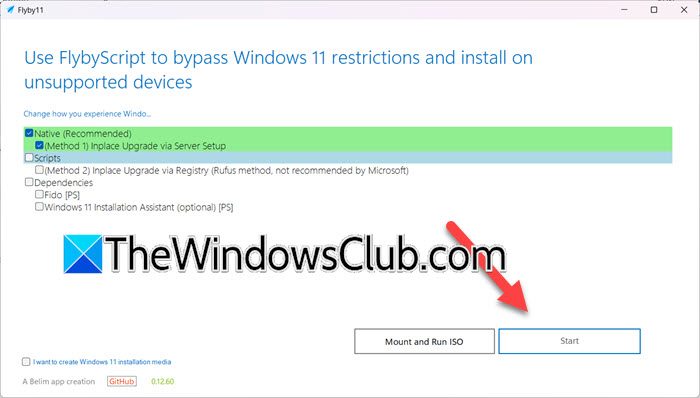
Upon launching Flyby11, you will be presented with a user interface offering several options. For most users, the recommended and simplest approach is to select the “Native (Recommended)” option. Within this option, ensure that “(Method 1) Inplace Upgrade via Server Setup” is ticked. This method is generally the most reliable and straightforward for upgrading to Windows 11 while bypassing the hardware checks. After confirming these selections, click the “Start” button to initiate the process.
Step 4: Proceeding Through Prompts and ISO Download
Clicking “Start” will trigger a series of prompts. Carefully read each prompt and click “Continue” to proceed. These prompts may present options for customization or confirmation of settings. During this phase, Flyby11 will automatically begin downloading a Windows 11 ISO file from Microsoft servers. The download progress will be displayed, and the download time will vary depending on your internet connection speed. Ensure you have sufficient disk space to accommodate the ISO file, which is typically several gigabytes in size.
Step 5: Mounting and Running the ISO
Once the ISO file download is complete, return to the Flyby11 application interface. Click on the “Mount and Run ISO” button. This action will mount the downloaded Windows 11 ISO file as a virtual drive on your system. A file explorer window will automatically open, displaying the contents of the mounted ISO.
Step 6: Initiating Windows 11 Installation
Within the file explorer window showing the mounted ISO contents, locate and run the “setup.exe” file. This action will launch the Windows 11 installation wizard. Follow the on-screen instructions provided by the installation wizard. The wizard will guide you through the process of installing Windows 11, including options for choosing installation type (upgrade or custom), selecting partitions, and configuring initial settings.
Step 7: Completing the Installation
Continue following the on-screen prompts to complete the Windows 11 installation. The installation process may involve system restarts and configuration steps. Once the installation is finalized, your computer will boot into the newly installed Windows 11 operating system. At this point, you have successfully bypassed the hardware requirements and installed Windows 11 on your previously unsupported hardware using Flyby11.
Can You Run Windows 11 Without Minimum Requirements?
While officially, Microsoft mandates specific hardware requirements for Windows 11, tools like Flyby11 and Rufus demonstrate that these requirements can be circumvented. It’s crucial to understand that bypassing these requirements does not magically enhance your hardware’s capabilities. Windows 11 is designed to perform optimally on systems meeting the specified criteria.
Running Windows 11 on unsupported hardware may lead to a variety of outcomes. In some cases, users might experience no noticeable issues, with Windows 11 functioning smoothly. However, in other scenarios, users might encounter performance degradation, driver incompatibility, or system instability. The extent of these issues can vary greatly depending on the specific hardware configuration and the degree to which it deviates from the recommended specifications.
It’s also worth noting that Microsoft does not officially support running Windows 11 on unsupported hardware. This means that users who choose to bypass the requirements may not receive the same level of support or updates as users on compatible systems. While security updates are generally expected to be delivered regardless of hardware compatibility, feature updates or specific driver support might be less reliable or readily available.
Tools like Rufus offer an alternative method for bypassing TPM and Secure Boot checks during Windows 11 installation. Rufus allows users to create bootable USB drives from ISO images, and it includes options to modify the installation files to bypass these hardware checks. This approach is particularly useful for creating clean installations of Windows 11 on unsupported hardware.
Ultimately, the decision to run Windows 11 on unsupported hardware is a personal one. Users should weigh the potential benefits of accessing the latest operating system against the potential risks of performance issues or reduced support. It is always recommended to assess your hardware’s capabilities and consider whether it is realistically capable of running Windows 11 effectively, even if the installation is technically possible.
Risks and Considerations
Bypassing Windows 11 hardware requirements, while made easier by tools like Flyby11, is not without potential risks and considerations that users should be aware of before proceeding.
Performance Implications: Running Windows 11 on hardware that does not meet the minimum specifications can lead to suboptimal performance. The operating system is designed to leverage certain hardware features for efficiency and speed. Lacking these features or running on older, less powerful hardware can result in slower boot times, application lag, and reduced overall responsiveness. While basic tasks might be manageable, resource-intensive applications or multitasking could become noticeably sluggish.
Driver Compatibility Issues: Older hardware may not have readily available or fully compatible drivers for Windows 11. Manufacturers often prioritize driver support for newer operating systems for their more recent product lines. This can lead to situations where certain hardware components, such as graphics cards, sound cards, or network adapters, may not function correctly or optimally under Windows 11 due to driver incompatibility. Finding and installing compatible drivers can become a challenging and time-consuming task.
System Instability and Errors: Running an operating system on unsupported hardware can increase the likelihood of system instability and errors. This can manifest as unexpected crashes, blue screens of death (BSODs), or application failures. While Flyby11 facilitates the installation process, it cannot guarantee the long-term stability or reliability of Windows 11 on every unsupported system. The degree of instability can vary widely depending on the specific hardware and usage patterns.
Security Concerns: Although security updates are generally expected to be provided, running Windows 11 on unsupported hardware might introduce subtle security vulnerabilities. Microsoft’s official support and testing focus on compatible hardware configurations. Unforeseen interactions or vulnerabilities might emerge in unsupported environments that are not thoroughly tested or patched. Users should be mindful of this potential, although the extent of increased security risk is difficult to quantify.
Future Updates and Support: Microsoft’s commitment to supporting Windows 11 on bypassed hardware is uncertain. While basic updates may continue, feature updates or specific driver support for older hardware are not guaranteed. Users who bypass requirements should be prepared for the possibility of reduced support or potential limitations in accessing future Windows 11 features and enhancements. It is advisable to periodically check for official announcements or community discussions regarding support for bypassed systems.
Warranty Implications (Potentially): In some very specific and unlikely scenarios, although generally not applicable to software modifications like OS installations, hardware warranties could theoretically be voided if damage is directly and demonstrably caused by running an unsupported operating system. However, this is highly improbable and not a typical concern for OS installations. It’s mentioned for completeness but is generally not a practical risk.
In summary, while Flyby11 offers a convenient way to install Windows 11 on unsupported hardware, users should carefully consider the potential risks and limitations. It is essential to weigh the desire to experience Windows 11 against the potential for performance issues, instability, and reduced support. For critical systems or users prioritizing stability and official support, adhering to the recommended hardware requirements remains the most prudent approach.
Alternative Methods for Installing Windows 11 on Unsupported Hardware
Flyby11 is not the only method available for installing Windows 11 on systems that do not meet the official hardware requirements. Several alternative approaches exist, each with its own set of advantages and disadvantages.
Rufus: As previously mentioned, Rufus is a popular utility for creating bootable USB drives. It provides a user-friendly interface to modify Windows 11 ISO images to bypass TPM, Secure Boot, and RAM checks. Rufus is particularly effective for creating clean installation media, allowing users to perform fresh installations of Windows 11 on unsupported hardware. It offers a high degree of customization and is widely trusted within the tech community.
Media Creation Tool with Modifications: Microsoft’s official Media Creation Tool can be used to download Windows 11 ISOs and create bootable USB drives. While the standard tool enforces hardware checks, it is possible to modify the installation files created by the Media Creation Tool to bypass these checks. This typically involves replacing certain files within the ISO image or bootable drive with modified versions that disable the hardware compatibility checks. This method requires a slightly higher level of technical expertise compared to using Flyby11 or Rufus.
Registry Editor Bypass (During Setup): During the Windows 11 setup process, specifically when booting from installation media, it is possible to access the Registry Editor and modify certain registry keys to bypass the hardware checks. This method involves pressing Shift + F10 to open Command Prompt, then typing regedit to launch the Registry Editor. Navigating to specific registry keys and creating or modifying values can disable the TPM and Secure Boot checks. This approach is more technical and requires careful execution to avoid potential issues.
Group Policy Editor Bypass (Post-Installation): In some cases, after installing Windows 11 on unsupported hardware using other bypass methods, certain hardware checks might still persist. The Group Policy Editor (gpedit.msc, available in Pro and Enterprise editions of Windows) can be used to further disable hardware compatibility checks post-installation. This method is less common for initial installation bypass but can be useful for fine-tuning or addressing persistent compatibility warnings.
Third-Party ISOs (Use with Caution): While less recommended due to potential security risks, pre-modified Windows 11 ISO images are sometimes available from third-party sources. These ISOs are often designed to automatically bypass hardware checks during installation. However, downloading and using ISOs from unofficial sources carries significant security risks, as they may contain malware or unwanted software. This method should only be considered with extreme caution and from highly trusted sources, if at all.
Dual Booting with Linux: For users who are comfortable with alternative operating systems, dual-booting with a Linux distribution alongside Windows 11 can be a viable option. Linux distributions generally have much less stringent hardware requirements and can often run effectively on older hardware. Dual-booting allows users to retain access to Windows 11 for specific applications while leveraging the performance and flexibility of Linux for everyday tasks.
Each of these alternative methods offers a different balance of ease of use, technical complexity, and potential risks. Flyby11 and Rufus stand out for their user-friendliness and effectiveness, while other methods like registry editing or modifying Media Creation Tool files offer more direct control but require greater technical skill. Users should carefully evaluate their technical expertise and comfort level with each method before choosing the approach that best suits their needs and capabilities.
Conclusion
Flyby11 provides a remarkably simple and effective solution for users seeking to install Windows 11 on hardware that does not officially meet the stringent system requirements. Its user-friendly interface and streamlined process democratize the ability to experience the latest Windows operating system, even on older computers. By automating the bypass of TPM, Secure Boot, and processor checks, Flyby11 eliminates the need for complex manual modifications or technical expertise.
However, it is crucial to remember that bypassing hardware requirements is not a guaranteed path to seamless Windows 11 performance. Users should carefully weigh the potential benefits against the inherent risks, including potential performance degradation, driver issues, system instability, and reduced official support. For users with older but still capable hardware, Flyby11 offers a compelling option to extend the lifespan of their systems and explore the features of Windows 11. As with any operating system modification, proceed with caution, back up your data, and be prepared to troubleshoot potential issues.
Have you tried Flyby11 or other methods to install Windows 11 on unsupported hardware? Share your experiences and thoughts in the comments below!
Post a Comment