Top FRP Bypass Tools for Windows PCs: Unlock Your Device Easily
Factory Reset Protection, commonly known as FRP, is a crucial security feature integrated into Android devices. It acts as a robust safeguard, preventing unauthorized access to your device after a factory reset. This is particularly important in scenarios where your phone is lost or stolen, ensuring that your personal data remains protected even if it falls into the wrong hands. FRP essentially creates a link between your device and your Google account, requiring your Google credentials to be entered after a reset to regain access. This mechanism effectively deters thieves from simply resetting a device to bypass security measures and use or sell it.
Understanding Factory Reset Protection (FRP)
FRP was introduced by Google as a part of its ongoing efforts to enhance Android security. It was designed to combat the increasing problem of smartphone theft and to give users greater peace of mind knowing their data was safer. When FRP is active, performing a factory reset through recovery mode or settings will trigger the FRP lock. Upon restarting, the device will prompt for the Google account username and password that was previously associated with the device before the reset. This verification step is the core of FRP’s security, making it significantly harder for anyone without the correct credentials to use the device.
The effectiveness of FRP lies in its integration with the Android operating system at a fundamental level. It’s not just a simple lock screen; it’s deeply embedded within the system’s security architecture. This makes it a very reliable security measure against unauthorized access after a factory reset. For legitimate owners, FRP provides reassurance that their personal information, including contacts, messages, photos, and apps, is shielded from prying eyes if their device is misplaced or stolen. This is especially critical in today’s digital age where smartphones hold a vast amount of personal and sensitive data.
Why You Might Need an FRP Bypass Tool
While FRP is an essential security feature, there are legitimate situations where users might find themselves locked out of their own devices due to FRP. The most common scenario is forgetting your Google account credentials. In our increasingly digital lives, managing multiple accounts and passwords can be challenging, and it’s not uncommon for users to forget the exact Google account details used on their Android phone, especially if it’s an older device or a secondary phone.
Another frequent situation arises when purchasing a second-hand Android phone. If the previous owner did not properly remove their Google account before selling or trading the device, the FRP lock will remain active. As a result, the new owner will be greeted with the Google Account Verification screen after performing a reset or even upon initial setup. Without the previous owner’s credentials, the device becomes essentially unusable. This can be a frustrating experience for buyers of used devices who are unaware of FRP or fail to check if the device is FRP-locked before purchase.
Furthermore, there might be instances where users need to factory reset their devices for legitimate reasons, such as troubleshooting software issues or preparing the device for resale, but they encounter problems with their Google account access. Perhaps the account was compromised and recovered, leading to credential changes that are not immediately remembered, or maybe there are issues with account synchronization. In such cases, even the rightful owner can be locked out by FRP, highlighting the need for FRP bypass tools as a last resort solution to regain access to their own device. It is important to emphasize that FRP bypass tools should only be used for legitimate purposes, such as regaining access to your own locked device when you have forgotten your Google account details, and not for bypassing security on stolen or illegally obtained devices.
Top FRP Bypass Tools for Windows 11/10
For users facing FRP lock situations and needing to regain access to their devices, several FRP bypass tools are available that can be installed and operated from Windows PCs. These tools are designed to circumvent the Google Account Verification process and allow users to unlock their devices. Here are some of the top FRP bypass tools compatible with Windows 11 and Windows 10:
1. WooTechy iDelock for Android
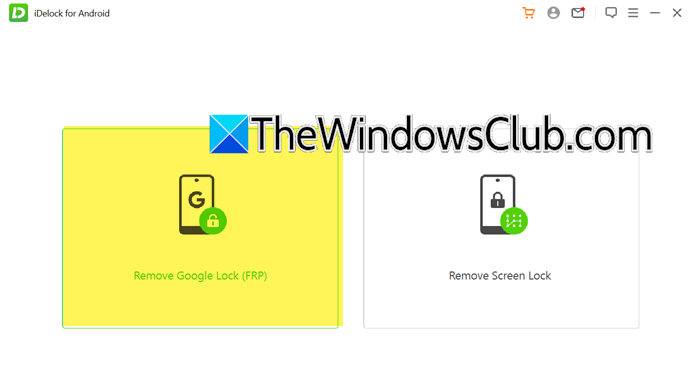
WooTechy iDelock for Android is a comprehensive Android unlocking tool that includes FRP bypass functionality. It is designed with user-friendliness in mind, aiming to simplify the often complex process of FRP removal. iDelock boasts the ability to remove various types of Android locks, including FRP locks, screen locks (PIN, pattern, password, fingerprint, face lock), and even Google locks in certain situations.
Key Features of WooTechy iDelock:
- FRP Bypass: Specifically designed to bypass the Factory Reset Protection on Android devices.
- Screen Lock Removal: Capable of removing various screen lock types without data loss in some cases.
- User-Friendly Interface: Features a straightforward and intuitive interface, making it accessible for users with varying levels of technical expertise.
- Wide Device Compatibility (Specific Brands): While initially focused on Samsung, Redmi, and Xiaomi devices, compatibility may expand over time. It’s important to check the official website for the most up-to-date device support list.
- Step-by-Step Guide: Provides clear on-screen instructions to guide users through the FRP bypass process.
How to Use WooTechy iDelock for FRP Bypass:
- Download and Installation: Download WooTechy iDelock for Android from the official WooTechy website and install it on your Windows PC.
- Launch iDelock: Open the iDelock application after installation.
- Select “Remove Google Lock (FRP)”: From the main interface, choose the “Remove Google Lock (FRP)” option.
- Select Device Brand: Select the brand of your Android device from the provided list (e.g., Samsung, Xiaomi, Redmi).
- Choose Mode: Select the appropriate mode, typically “Standard Mode” for FRP bypass.
- Select Android Version: Choose the Android version running on your locked device. This is crucial for ensuring compatibility and successful bypass.
- Connect Device: Connect your Android phone to your Windows PC using a USB cable. Ensure USB debugging is enabled on your device if possible, although iDelock may provide alternative methods if it’s not accessible due to FRP lock.
- Follow On-Screen Instructions: iDelock will guide you through the remaining steps, which may involve putting your device into recovery mode or download mode, depending on the device and Android version. Carefully follow the prompts on the screen to complete the FRP bypass process.
Pros:
- User-friendly interface.
- Effective FRP bypass for supported brands.
- Additional screen lock removal features.
Cons:
- Limited brand support compared to some other tools (initially focused on Samsung, Redmi, Xiaomi).
- May require a paid license for full functionality.
2. iToolab UnlockGo (Android)
iToolab UnlockGo (Android) is another prominent FRP bypass tool that is widely recognized for its reliability and ease of use. It is designed to help users effectively remove Google account verification locks from a broad range of Android devices. UnlockGo emphasizes compatibility and aims to support a diverse selection of brands and models, making it a versatile option for users facing FRP locks on various devices.
Key Features of iToolab UnlockGo (Android):
- Extensive Brand Support: Claims to support a wide range of Android brands, including Samsung, Xiaomi, Redmi, Vivo, OPPO, Motorola, and Realme, among others. This broad compatibility is a significant advantage for users with devices beyond the limited brands supported by some tools.
- FRP Bypass: Specifically engineered to bypass Google account verification locks (FRP) effectively.
- User-Friendly Operation: Designed with a simple and intuitive interface to guide users through the FRP removal process without requiring advanced technical skills.
- Fast Unlock Process: Aims to provide a quick and efficient FRP bypass solution, minimizing downtime and device inaccessibility.
- Technical Support: Typically offers customer support to assist users with any issues or questions during the FRP bypass process.
How to Use iToolab UnlockGo (Android) for FRP Bypass:
- Download and Installation: Visit the official iToolab website and download iToolab UnlockGo (Android) for Windows. Install the application on your computer.
- Launch UnlockGo: Open the iToolab UnlockGo application.
- Connect Device: Connect your FRP-locked Android phone to your Windows PC using a USB cable. Ensure a stable connection throughout the process.
- Start FRP Bypass: Select the “FRP Bypass” option within the UnlockGo interface.
- Follow On-Screen Instructions: UnlockGo will provide step-by-step instructions tailored to your device model and Android version. These instructions may involve specific button combinations or device settings to initiate the bypass process. Carefully follow each step as prompted by the software.
- Reboot Device: Once the FRP bypass process is complete, UnlockGo will typically instruct you to reboot your Android phone. After rebooting, the device should boot up without the Google Account Verification screen, granting you access.
Pros:
- Wide brand and device support.
- User-friendly and straightforward process.
- Fast FRP bypass execution.
- Reliable performance.
Cons:
- May require a paid license for full features and device support.
- Success rate can vary depending on the specific device model and Android version.
3. DroidKit
DroidKit is a comprehensive Android solution suite developed by iMobie that includes a powerful FRP bypass module among its many features. Unlike tools solely focused on FRP bypass, DroidKit offers a wider array of functionalities, making it a versatile utility for Android users facing various device issues. Beyond FRP removal, DroidKit can assist with data recovery, screen unlock (including more complex lock types), system repair, and even data management.
Key Features of DroidKit:
- All-in-One Android Solution: Offers a wide range of functionalities beyond FRP bypass, including data recovery, system repair, screen unlock, data management, and more.
- FRP Bypass: Effectively bypasses Google account verification on Samsung, Xiaomi, Redmi, and other Android devices.
- Screen Unlock: Supports removal of various screen lock types, including PIN, password, pattern, fingerprint, and face lock.
- Data Recovery: Capable of recovering lost data from Android devices in various scenarios, such as accidental deletion, system crashes, or SD card issues.
- System Repair: Can fix common Android system issues, such as black screen, boot loops, and crashes.
- Junk Cleaner: Helps optimize device performance by cleaning up junk files and unnecessary data.
- User-Friendly Interface: Designed with an intuitive interface to make its diverse features accessible to a broad range of users.
How to Use DroidKit for FRP Bypass:
- Download and Installation: Download DroidKit from the official iMobie website and install it on your Windows PC (it’s also available for macOS).
- Launch DroidKit: Open the DroidKit application.
- Select “FRP Bypass”: From the DroidKit main menu, choose the “FRP Bypass” option.
- Connect Device: Connect your FRP-locked Android phone to your computer using a USB cable.
- Start Bypass Process: Click the “Start” button within DroidKit to initiate the FRP bypass procedure.
- Configuration File Preparation: DroidKit will prepare the necessary configuration files for your device.
- Start to Bypass: Once the “Configuration file preparation is done” message appears, click “Start to Bypass” to proceed with the FRP removal.
- Follow On-Screen Instructions: DroidKit will guide you through any remaining steps specific to your device model, ensuring a successful FRP bypass.
Pros:
- Comprehensive Android solution suite with multiple functionalities.
- Effective FRP bypass capabilities.
- User-friendly interface.
- Data recovery and system repair features are valuable additions.
Cons:
- Being a comprehensive suite, it might be more resource-intensive than dedicated FRP bypass tools.
- Full functionality usually requires a paid license.
4. Pangu FRP Unlocker
Pangu FRP Unlocker is a more specialized tool primarily focused on FRP bypass. It is often favored by users seeking a lightweight and dedicated solution specifically for removing Google account verification locks. While it may not boast the extensive feature sets of tools like DroidKit, Pangu FRP Unlocker aims to provide a streamlined and efficient FRP bypass experience. Information about Pangu FRP Unlocker can be less readily available compared to more widely marketed tools, so users may need to exercise caution and seek reputable download sources.
Key Features of Pangu FRP Unlocker:
- Dedicated FRP Bypass: Primarily designed and optimized for bypassing Factory Reset Protection on Android devices.
- Lightweight and Efficient: Typically a smaller and less resource-intensive application compared to all-in-one suites.
- Potentially Free (or Lower Cost): Depending on the source and version, Pangu FRP Unlocker might be available as a free tool or at a lower cost compared to premium options. However, be cautious of free tools and ensure you download from trusted sources.
- Simplified Operation: Aims to provide a straightforward FRP bypass process, focusing on the essential steps.
How to Use Pangu FRP Unlocker for FRP Bypass:
- Download and Installation: Search for “Pangu FRP Unlocker download” and carefully choose a reputable source to download the tool. Install it on your Windows PC. Be extra cautious when downloading free tools from the internet, as some sources may bundle malware.
- Launch Pangu FRP Unlocker: Open the Pangu FRP Unlocker application.
- Connect Device: Connect your FRP-locked Android phone to your computer via USB cable.
- Initiate FRP Bypass: The interface is likely to be simpler, with a direct option to “Start” or “Bypass FRP.” Click the relevant button to begin the process.
- Follow On-Screen Prompts (if any): Pangu FRP Unlocker may have fewer on-screen instructions compared to more user-guided tools, but follow any prompts that appear.
- Device Reboot: Once the process is complete, reboot your Android device. It should hopefully bypass the FRP lock and boot up normally.
Pros:
- Dedicated FRP bypass tool.
- Lightweight and potentially faster operation.
- May be available for free or at a lower cost.
Cons:
- Reliability and success rate can vary.
- User support and documentation might be limited.
- Download sources need to be carefully vetted to avoid malware.
- May have limited device compatibility compared to broader tools.
5. Tenorshare Samsung FRP Tool
While “Tenorshare Samsung FRP Tool” is mentioned, it’s important to clarify that Tenorshare offers a broader software suite called Tenorshare ReiBoot for Android. ReiBoot for Android is a comprehensive Android repair and utility tool that includes FRP bypass functionality, specifically tailored for Samsung devices. It’s likely that “Tenorshare Samsung FRP Tool” refers to the Samsung FRP bypass feature within ReiBoot for Android.
Key Features of Tenorshare ReiBoot for Android (Samsung FRP Bypass):
- Samsung-Focused FRP Bypass: Specifically designed and optimized to bypass FRP locks on Samsung Android devices. This targeted approach can lead to higher success rates and more reliable performance for Samsung users.
- Part of a Comprehensive Suite: The FRP bypass feature is integrated within ReiBoot for Android, which offers a range of other Android repair and utility functions, such as system repair, download mode/recovery mode entry/exit, and more.
- User-Friendly Interface: Tenorshare products are generally known for having user-friendly interfaces, making ReiBoot for Android relatively easy to use even for less technically inclined users.
- Technical Support: Tenorshare typically provides customer support and documentation for their software, which can be helpful if users encounter issues.
How to Use Tenorshare ReiBoot for Android (Samsung FRP Bypass):
- Download and Installation: Download Tenorshare ReiBoot for Android from the official Tenorshare website and install it on your Windows PC.
- Launch ReiBoot for Android: Open the ReiBoot for Android application.
- Select “Remove Google Lock (FRP)”: In the ReiBoot interface, look for and select the option related to “Remove Google Lock (FRP)” or similar wording.
- Connect Samsung Device: Connect your FRP-locked Samsung Android phone to your computer using a USB cable.
- Start FRP Bypass: Follow the on-screen instructions provided by ReiBoot for Android. The process may involve selecting your device model and Android version, and then initiating the FRP bypass.
- Download Firmware (if required): ReiBoot for Android might automatically download specific firmware packages required for your Samsung device model to perform the FRP bypass.
- Follow Prompts: Carefully follow all prompts and instructions displayed by ReiBoot for Android to complete the FRP bypass process.
Pros:
- Samsung-device focused and optimized FRP bypass.
- Part of a reputable and comprehensive Android repair suite.
- User-friendly interface.
- Technical support available.
Cons:
- Primarily focused on Samsung devices; may not be as effective for other brands.
- Full functionality requires a paid license.
Choosing the Right FRP Bypass Tool
Selecting the most suitable FRP bypass tool depends on several factors specific to your situation and device. Here are key considerations to help you choose:
- Device Brand and Model: Crucially important. Some tools, like Tenorshare ReiBoot for Android, are heavily optimized for specific brands like Samsung. Others, like iToolab UnlockGo, claim wider brand support. Always check the tool’s compatibility list to ensure it supports your exact device model and manufacturer. Brand-specific tools often offer better success rates for their target brands.
- Android Version: FRP bypass methods can vary depending on the Android operating system version installed on your device. Ensure the tool you choose explicitly states support for your Android version (e.g., Android 11, 12, 13, etc.). Tools often list supported Android versions on their websites or product descriptions.
- User-Friendliness: Assess your technical comfort level. Some tools have very simple, step-by-step interfaces, while others might be slightly more technical. If you’re not very tech-savvy, opt for a tool with a clear and intuitive user interface and comprehensive on-screen instructions.
- Success Rate and Reliability: While vendors often advertise high success rates, real-world performance can vary. Look for user reviews and testimonials (from reputable sources) to get an idea of the tool’s actual success rate and reliability. Be aware that FRP bypass is not always guaranteed, and success can depend on various factors.
- Cost and Licensing: Most professional FRP bypass tools are not free. They typically operate on a subscription or license basis. Consider your budget and whether the tool offers a trial version to test compatibility before purchasing. Free tools might exist (like Pangu FRP Unlocker mentioned), but exercise extreme caution with free tools from unknown sources, as they could pose security risks.
- Customer Support: If you anticipate needing assistance or troubleshooting, choose a tool from a vendor that offers reliable customer support. This can be invaluable if you encounter problems during the FRP bypass process. Tenorshare and iToolab are examples of companies that generally provide customer support.
- Features Beyond FRP Bypass: Consider if you need additional functionalities. DroidKit, for instance, offers data recovery and system repair alongside FRP bypass. If you foresee needing these extra features, an all-in-one tool might be a more cost-effective choice.
It’s often recommended to start with a tool that specifically lists compatibility with your device brand and Android version. If a tool offers a free trial or demo version, take advantage of it to test compatibility and ease of use before committing to a purchase.
Important Considerations and Precautions
Using FRP bypass tools should be approached with caution and responsibility. Here are crucial considerations and precautions:
- Legitimate Use Only: FRP bypass tools are intended for legitimate owners of devices who have forgotten their Google account credentials or purchased a second-hand device with an FRP lock. Using these tools to unlock stolen or illegally obtained devices is unethical and potentially illegal.
- Data Loss Risk: FRP bypass processes can potentially lead to data loss. While some tools claim to minimize data loss, it’s generally advisable to assume that data on the device might be erased during the bypass procedure. If possible (though often difficult when FRP locked), try to back up any important data before attempting FRP bypass.
- Device Damage Risk (Though Rare): While modern FRP bypass tools are generally designed to be safe, there’s always a slight inherent risk of encountering software glitches or issues during the process, which could potentially lead to minor device malfunctions or instability in rare cases. Follow the tool’s instructions precisely and ensure a stable power supply to your device and computer during the process.
- Software Source Security: Download FRP bypass tools only from official websites or highly trusted sources. Avoid downloading from unknown or suspicious websites, as these tools could be bundled with malware, viruses, or other harmful software that could compromise your computer or device. Exercise extreme caution, especially with free tools advertised online.
- Ethical Implications: Be mindful of the ethical implications. Do not use FRP bypass tools to unlock devices that are not rightfully yours. Respect device ownership and use these tools responsibly.
- Software Updates and Compatibility: Android security measures and FRP bypass methods are constantly evolving. Tool developers strive to keep their software updated to maintain compatibility with the latest Android versions and security patches. However, there might be instances where a tool is not yet updated for the very latest Android release. Check for recent updates and compatibility information from the tool vendor before use.
- Warranty Voiding (Potential): While less common with software-based FRP bypass, some device manufacturers might consider unauthorized software modifications (like FRP bypass) as grounds for voiding the device warranty. Be aware of this potential, although it’s not usually a primary concern for users who are already locked out of their devices and seeking a solution.
By adhering to these precautions and using FRP bypass tools responsibly and ethically, you can increase your chances of successfully regaining access to your legitimately owned Android device when faced with an FRP lock situation.
Conclusion
FRP bypass tools for Windows PCs offer a valuable solution for Android users who find themselves locked out of their devices due to Factory Reset Protection. Whether you’ve forgotten your Google account credentials or purchased a second-hand phone with an active FRP lock, these tools can provide a pathway to regain access. Tools like WooTechy iDelock, iToolab UnlockGo, DroidKit, Pangu FRP Unlocker, and Tenorshare ReiBoot for Android each offer unique features and device compatibility. Choosing the right tool depends on your specific device, Android version, and technical comfort level. Remember to use these tools responsibly, ethically, and only for legitimate purposes, always prioritizing data security and device integrity. By carefully considering your options and following best practices, you can effectively navigate FRP lock situations and unlock your Android device with confidence.
Have you ever encountered an FRP lock situation? What tools or methods have you used to bypass it? Share your experiences and thoughts in the comments below!
Post a Comment