Chrome Client-Side Exception? Fix Application Errors with These Steps
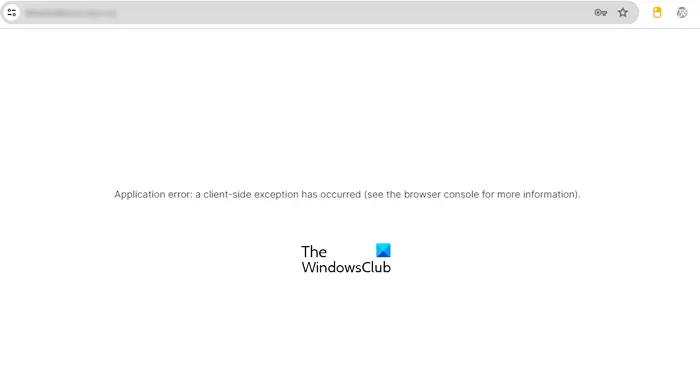
Encountering errors while browsing the internet can be a frustrating experience. One such common error that users of Google Chrome and other Chromium-based browsers like Microsoft Edge might face is the “A client-side exception has occurred” error. This error message indicates that something has gone wrong on the client-side, meaning within your web browser, preventing the web application from functioning correctly. The full error message typically reads: “Application error: a client-side exception has occurred (see the browser console for more information).” While the message itself is quite generic, it points towards issues within the browser environment that need to be addressed. This guide will explore several effective solutions to troubleshoot and resolve this error, allowing you to resume your browsing activities smoothly.
Resolving the “A client-Side Exception Has Occurred” Error on Chrome
When confronted with the “A client-side exception has occurred” error in Google Chrome, there are several troubleshooting steps you can take to identify and rectify the problem. These solutions range from simple browser maintenance to more advanced configuration adjustments. The following methods are presented in a logical order, starting with the easiest and most common fixes, and progressing to more involved solutions. It’s recommended to try these steps sequentially until the error is resolved.
1. Update Google Chrome to the Latest Version
Keeping your web browser up to date is crucial for optimal performance and security. Outdated browser versions can harbor bugs and compatibility issues that might trigger errors like the “client-side exception.” Developers regularly release updates to address these problems and introduce improvements. To ensure you are running the latest version of Google Chrome, follow these simple steps:
- Click on the three vertical dots (the More menu) located in the top-right corner of the Chrome browser window.
- Navigate to Help in the dropdown menu.
- Select About Google Chrome.
Chrome will automatically initiate a check for available updates. If an update is found, it will be downloaded and installed in the background. Once the update is installed, you will typically be prompted to relaunch Chrome to apply the changes. Restarting the browser after updating is essential to ensure that all new components are properly loaded and running. After updating, revisit the webpage where you encountered the error to see if the issue persists. Often, simply updating the browser resolves a wide range of problems, including client-side exceptions.
2. Clear Browser Cache and Cookies
Accumulated cache and cookies in your browser can sometimes become corrupted or outdated, leading to various browsing issues, including client-side exceptions. Cache files are designed to speed up page loading by storing frequently accessed data locally. Cookies, on the other hand, store website preferences and login information. While these are generally beneficial, they can occasionally interfere with website functionality if they become corrupted or conflict with updated website code. Clearing your browser’s cache and cookies is a straightforward troubleshooting step that can resolve many browser-related errors. Here’s how to clear cache and cookies in Chrome:
- Open Chrome and press Ctrl + Shift + Delete keys simultaneously. This shortcut directly opens the Clear browsing data window.
- Alternatively, you can access this window by clicking on the three vertical dots (More menu) in the top-right corner, then navigating to More tools > Clear browsing data.
- In the Clear browsing data window, ensure that the time range is set to “All time” to clear all stored cache and cookies.
- Check the boxes next to “Cookies and other site data” and “Cached images and files”. You can uncheck other options if you only want to clear cache and cookies.
- Click the “Clear data” button.
Chrome will then proceed to clear the selected browsing data. This process might take a few moments depending on the amount of data stored. After clearing the cache and cookies, close and reopen your browser, and then try accessing the webpage that was previously displaying the error. Clearing this data forces the browser to fetch fresh copies of website resources, potentially resolving conflicts caused by outdated or corrupted cached data.
3. Disable Browser Extensions Temporarily
Browser extensions enhance Chrome’s functionality, but some extensions can conflict with websites or web applications, leading to client-side exceptions. Extensions, especially those that inject scripts or modify webpage content, can sometimes interfere with the proper execution of website code. To determine if an extension is causing the error, temporarily disable all extensions and check if the problem disappears. If disabling extensions resolves the issue, it indicates that one or more extensions are indeed the culprit. Here’s how to disable extensions in Chrome:
- Type
chrome://extensions/in the Chrome address bar and press Enter. This will open the Chrome Extensions page. - You will see a list of all installed extensions. Toggle the blue switch in the bottom right corner of each extension card to the grey “off” position to disable it. Alternatively, you can click “Remove” to completely uninstall the extension, but disabling is sufficient for testing purposes.
- Disable all extensions listed on the page.
After disabling all extensions, restart your browser and navigate to the website where you encountered the error. If the error is gone, then an extension was causing the problem. To identify the specific problematic extension, re-enable extensions one by one, testing the webpage after enabling each extension. This process of elimination will help you pinpoint the extension that is causing the conflict. Once identified, you can either remove the problematic extension, keep it disabled when visiting specific websites, or look for alternative extensions that provide similar functionality without causing errors. Common culprits are often ad blockers, script blockers, or security extensions, as these directly interact with webpage content.
4. Create a New Chrome Profile
Your Chrome profile stores your browsing data, settings, extensions, and themes. Corruption within your profile can sometimes lead to unexpected browser behavior, including client-side exceptions. Creating a new Chrome profile essentially starts you with a fresh, clean browser environment, free from any potential profile-related issues. This is a useful troubleshooting step to isolate whether the problem is linked to your user profile or a more general browser issue. To create a new Chrome profile:
- Click on your profile icon located in the top-right corner of the Chrome browser window, next to the three vertical dots (More menu).
- Click on the profile name, which usually appears at the top of the dropdown menu. This will open the profile management interface.
- Click on “Add” button.
- Choose a name for your new profile. You can also choose to sign in with a Google account to sync your data later, or proceed without signing in for initial testing.
- Click “Done”.
A new Chrome window will open with the newly created profile. Now, try to access the website that was triggering the “client-side exception” error in this new profile. If the error does not appear in the new profile, it strongly suggests that the issue was confined to your previous Chrome profile. You can then consider migrating your essential data to the new profile. To do this, sign in to the new profile with your Google account to sync bookmarks, history, passwords, and settings. After confirming that the new profile works correctly, you can delete the old profile if desired. To delete an old profile, return to the profile management interface (step 1 and 2 above), hover over the old profile, click the three vertical dots that appear, and select “Remove”.
5. Disable Shield Features if Applicable
Some Chromium-based browsers, particularly those focused on privacy and security, incorporate built-in “Shield” or protection features. These shields often block trackers, ads, and potentially harmful scripts. While generally beneficial, these features can sometimes be overly aggressive and interfere with the proper functioning of certain websites, leading to client-side exceptions. If you are using a browser with such a shield feature (like Brave browser’s Shields, for example), temporarily disabling it for the website experiencing the error can help determine if the shield is the cause. The process to disable shields varies depending on the browser, but generally involves:
- Locate the shield icon, usually in the address bar, to the left of the website URL.
- Click on the shield icon to open the shield settings panel for the current website.
- Look for an option to disable the shield for this site, often a toggle switch or a button labeled “Shields OFF for this site” or similar.
- Disable the shield specifically for the website where you are encountering the error.
After disabling the shield, refresh the webpage and see if the error persists. If the error disappears, it indicates that the shield feature was indeed blocking necessary components for the website to function correctly. You can then choose to keep the shield disabled for this specific website, or adjust the shield’s settings to be less restrictive while still maintaining a desired level of protection. Be mindful that disabling shield features might reduce privacy and security on that specific website.
6. Reset Google Chrome Settings to Default
Resetting Chrome settings reverts the browser to its original default configuration, removing any custom settings that might be causing conflicts or errors. This action will reset your startup page, new tab page, search engine, and pinned tabs. It will also disable extensions and clear temporary data like cookies and site data. However, your bookmarks, history, and saved passwords will generally be preserved. Resetting Chrome is a more drastic step than clearing cache or disabling extensions, but it can effectively resolve issues caused by corrupted settings or unintended configuration changes. To reset Chrome settings:
- Type
chrome://settings/resetin the Chrome address bar and press Enter. This will directly open the “Reset settings” page. - Alternatively, you can navigate to this page by clicking on the three vertical dots (More menu) in the top-right corner, then going to Settings > Advanced > Reset and clean up > Restore settings to their original defaults.
- Click on the “Restore settings to their original defaults” button.
- Chrome will display a confirmation prompt explaining what will be reset. Review the information and click “Reset settings” to proceed.
After resetting, Chrome will restart with default settings. Check if the “client-side exception” error is resolved. If resetting fixes the problem, you can gradually reconfigure your settings and re-enable extensions one by one to see if the error reappears. Before resetting, it’s a good practice to ensure your Chrome data is synced to your Google account. Sign in to Chrome with your Google account to back up your bookmarks, history, passwords, and settings. This way, you can easily restore your synced data after the reset if needed.
7. Reinstall Google Chrome Completely
If none of the above steps have resolved the “client-side exception” error, a complete reinstallation of Google Chrome might be necessary. This involves uninstalling Chrome from your system and then installing a fresh copy. Reinstallation can address issues stemming from corrupted installation files or deep-seated problems within the browser’s core program files. To ensure a clean reinstallation, it’s recommended to use a dedicated uninstaller tool that can remove all traces of Chrome, including residual files and registry entries. Revo Uninstaller is a popular third-party uninstaller tool that can perform a thorough uninstall process. Here are the general steps for reinstalling Chrome:
- Uninstall Chrome: Use the Windows Control Panel or Settings app to uninstall Google Chrome. Alternatively, use a tool like Revo Uninstaller for a more complete removal. If using Revo Uninstaller, run it and select Google Chrome from the list of installed programs. Use the “Moderate” or “Advanced” uninstall option to scan for and remove leftover files and registry entries after the standard uninstall process.
- Restart Your Computer: After uninstalling Chrome, restart your computer to ensure that all uninstall processes are fully completed and system resources are cleared.
- Download the Latest Chrome Version: Go to the official Google Chrome download page using another browser (like Edge or Firefox). Download the latest version of Chrome installer.
- Install Chrome: Run the downloaded Chrome installer and follow the on-screen instructions to install Chrome on your system.
After reinstalling Chrome, launch the browser and check if the “client-side exception” error is gone. Reinstalling effectively replaces all browser files with fresh copies, resolving potential corruption or damage to the original installation. After reinstalling, you might need to re-sign in to your Google account to sync your data and settings.
Understanding Application Errors and Chrome Errors
It’s important to understand the broader context of application errors and Chrome-specific errors to better troubleshoot and prevent them in the future. While the “client-side exception” error is a general application error message, understanding the nuances can be helpful.
How to Fix a General Application Error
The steps to fix a general application error largely depend on the specific error message and the application in which it occurs. General application errors can arise from various sources, including software bugs, compatibility issues, resource conflicts, or system-level problems. Troubleshooting often involves:
- Restarting the application: A simple restart can often resolve temporary glitches.
- Updating the application: Ensure you are using the latest version of the application, as updates often contain bug fixes.
- Checking system requirements: Verify that your system meets the minimum requirements for the application.
- Reinstalling the application: As discussed for Chrome, reinstallation can fix corrupted application files.
- Checking system logs: Operating system event logs can provide more detailed error information.
- Seeking application-specific support: Consult the application’s documentation or support resources for specific error codes or troubleshooting steps.
Fixing Specific Chrome Error Codes
Chrome, like any complex software, can encounter various error codes, each indicating a specific type of problem. Error codes can appear during installation, updates, webpage loading, or general browser operation. Common Chrome error codes include network errors, rendering errors, and security errors. Troubleshooting specific Chrome error codes often involves:
- Searching for the error code online: A web search for the specific error code will often yield relevant troubleshooting guides and solutions.
- Consulting Chrome help documentation: Google Chrome Help provides documentation and troubleshooting for common error codes.
- Checking Chrome status page: For widespread Chrome issues, Google might publish information on the Chrome status page.
- Using Chrome’s built-in troubleshooting tools: Chrome DevTools (accessed by pressing F12) can provide detailed information about webpage loading errors and console logs.
- Considering browser extensions and settings: As discussed earlier, extensions and settings can be a source of various Chrome errors.
By understanding the nature of application errors and specific Chrome error codes, users can approach troubleshooting more effectively and efficiently. The solutions outlined in this guide for the “client-side exception” error provide a comprehensive starting point for resolving this common browser issue.
Have you experienced the “client-side exception has occurred” error in Chrome or another browser? Which of these solutions worked best for you? Share your experiences and any other troubleshooting tips in the comments below!
Post a Comment