Customize Windows 11: Easily Change Folder Icon Colors with Free Software
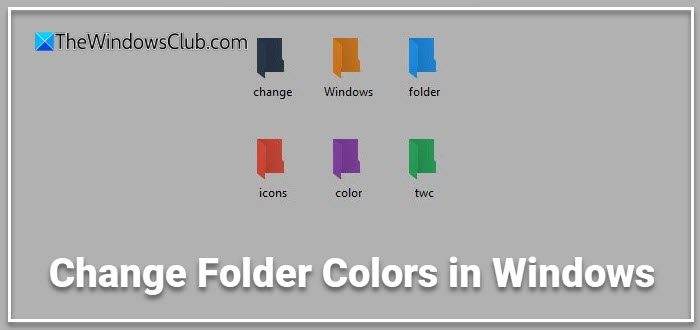
Are you a heavy computer user whose desktop is overflowing with folders? Navigating through a sea of identically colored folders to find that one specific file can be a frustrating and time-consuming task. Imagine spending precious minutes scanning rows of yellow folders, desperately seeking the one that holds your important project documents. Luckily, there’s a simple yet effective solution to bring order and visual clarity to your digital workspace: changing your folder colors.
Can you change the color of the folder icon in Windows?
Yes, you absolutely can! While Windows doesn’t natively offer a built-in feature to directly alter folder colors, a range of free, user-friendly software tools are available to effortlessly customize your folder icons. These tools empower you to inject personality and organizational logic into your file system. Typically, the process is as simple as right-clicking on a folder, selecting a color from the tool’s menu, and instantly applying it. This transforms your monotonous folder landscape into a vibrant, easily navigable environment. By assigning different colors to folders based on their content or priority, you can significantly enhance your workflow and reduce the time spent searching for files.
If you’re seeking a way to visually categorize your folders and streamline your file management in Windows 11 or 10, you’ve come to the right place. This article will introduce you to a curated list of free software options specifically designed to change folder icon colors. Imagine transforming your folders from the standard cream-yellow to striking reds, calming blues, or any color that suits your organizational system. This simple color change can make folders instantly recognizable and drastically improve your efficiency.
How to change Folder colors in Windows 11/10
Enhance the visual organization of your Windows 11 or 10 folders by leveraging free software to customize their style and color. The internet offers a selection of excellent freeware designed for your Windows PC that simplifies the process of changing folder colors. These tools are invaluable for anyone looking to quickly identify and access frequently used folders, transforming a chaotic desktop into an organized and visually appealing workspace. Below is an introduction to some of the best free software available to help you color-code your folders:
- StyleFolder
- Folder Marker
- Shedko FolderIco
- Folder Painter
- Rainbow Folders
- CustomFolders
Let’s delve into each of these software options and explore their features and how they can help you personalize your Windows folders.
1. StyleFolder
StyleFolder lives up to its name, offering a comprehensive suite of customization options to stylize your folders beyond just color. This freeware is a powerhouse for personalizing your folder aesthetics. Beyond simply changing the color, StyleFolder allows you to modify the folder icon itself, set a background image for the folder, customize the folder font, adjust the folder color, and even alter the folder size as displayed in certain views. With StyleFolder, you have the power to completely revamp the look of your folders, making them truly distinct and easily identifiable among a crowded desktop.
This utility is designed to be lightweight and efficient, ensuring a quick download and installation process, usually taking less than a minute depending on your internet speed. Once installed, using StyleFolder is intuitive. Simply launch the program, select the folder you wish to customize, right-click on it, and explore the extensive customization options available. StyleFolder is compatible with a wide range of Windows versions, including Windows 10, 8, 7, and even Vista, making it a versatile choice for users across different systems. Its broad customization capabilities make it ideal for users who want complete control over their folder appearance, allowing for highly personalized and visually distinct folders.
2. Folder Marker
Folder Marker is another user-friendly freeware option focused on simplifying the process of changing folder icon colors. Its primary function is to enable you to assign different colors to your folder icons, facilitating quick visual identification and retrieval of specific folders. Beyond color customization, Folder Marker also provides the ability to change the folder icon itself, allowing for a dual approach to folder personalization. By combining custom icons with distinct colors, you can create a highly organized and visually informative folder system.
Folder Marker offers flexibility in icon selection, allowing you to use icons from ICO, ICL, EXE, DLL, CPL, or BMP files. This broad compatibility ensures you can use a wide variety of icons to further differentiate your folders based on content or project type. Folder Marker is available in both free and paid versions. While the free version provides robust color and icon changing features, the paid version often includes additional functionalities, such as batch processing for customizing multiple folders at once and an expanded library of icons. For basic color customization and individual folder adjustments, the free version is often sufficient. You can download the free version directly from their website. Folder Marker is a great choice for users who need a simple yet effective tool for color-coding and icon customization, especially if they are looking for a balance of ease of use and functionality.
3. Shedko FolderIco
Shedko FolderIco is a straightforward and efficient utility designed to simplify folder color customization in Windows 10, 8, and 7. Its core purpose is to enable users to easily color their folders, enhancing visual differentiation and making frequently accessed folders quickly locatable. By changing both the color and the icon of your folders, Shedko FolderIco helps you create a more organized and intuitive file system. The program is designed for speed and ease of use, allowing you to change folder colors and icons with just a few clicks, streamlining the customization process.
A notable feature of FolderIco is the ability to revert back to the original folder icon and color instantly with a single click. This is particularly useful if you want to experiment with different color schemes or need to quickly reset your folder appearance. FolderIco also supports additional themes, which can be downloaded separately. These themes, typically in SFT format, offer pre-designed sets of colors and icons that can be applied to your folders, providing a quick way to apply consistent styling across multiple folders. These themes automatically integrate with the program, making them easy to access and apply. Shedko FolderIco is an excellent option for users who prioritize speed and simplicity in folder customization, offering a quick and reversible way to color-code folders and improve file organization.
4. Folder Painter
Folder Painter stands out as a portable and free program that focuses on simplifying the process of changing folder icons, primarily through color customization, to enhance folder visibility and locatability. The primary goal of Folder Painter is to allow users to quickly and easily assign different colors to folders, making them visually distinct and easier to find. With just a few simple clicks, you can transform a folder’s color, improving your visual organization system. Folder Painter is distributed as a zip file, emphasizing its portability. To use it, you simply download the zip file, extract its contents, and run the setup. This eliminates the need for a traditional installation process, making it convenient for users who prefer portable applications or need to use the tool on multiple computers without installation.
Once set up, Folder Painter integrates into the right-click context menu of folders. The submenu provided by Folder Painter contains a selection of pre-defined colors for quick application. For users who require more specific color options, Folder Painter allows you to add your own custom colors. This customization extends to creating custom icon folders with your preferred color palettes, offering a higher degree of personalization. As a portable application, Folder Painter is designed to be lightweight and have minimal impact on your PC’s performance. It operates smoothly without requiring significant system resources. You can download Folder Painter from various software download websites. Folder Painter is ideal for users who value portability and simplicity, offering a straightforward way to color-code folders without the need for installation or complex features.
5. Rainbow Folders
Rainbow Folders, much like the other software options discussed, is a freeware tool designed to help users differentiate their folders by changing their icon color. The core function of Rainbow Folders is to enable users to colorize their folders, making them visually distinct and easily identifiable. Imagine being able to instantly spot your work-related folders by assigning them a specific color, such as red, making them stand out amongst a multitude of standard yellow folders. This software is specifically designed to facilitate color-coding, allowing you to quickly locate and access the folders you need.
Rainbow Folders offers a wide range of color choices, going beyond a limited set of predefined colors. It provides access to an extensive spectrum of hues, giving you virtually unlimited color options to choose from. This vast color palette allows for highly granular customization, enabling you to assign unique colors based on project type, priority, or any other organizational criteria you might have. Rainbow Folders is a great option for users who need a wide range of color choices for folder customization, allowing for detailed and visually rich folder organization. Its focus on color variety makes it particularly useful for users who want to implement a complex color-coding system.
6. CustomFolders
CustomFolders is a comprehensive program designed to go beyond simple color changes and offer extensive customization for your folder icons. This free software for Windows empowers you to not only change the colors of your folders but also to add emblems or overlays to each folder icon. While Windows itself provides basic functionality for changing folder icons, CustomFolders significantly expands these capabilities. It allows you to change the color of your folders and then further enhance their visual distinction by adding an emblem on top of the icon. Emblems can be used to signify folder status, project type, or any other relevant category, adding an extra layer of information directly to the folder icon.
CustomFolders provides a wide range of emblems to choose from, and often allows users to import their own emblem images for even greater personalization. This combination of color and emblem customization offers a powerful way to visually categorize and manage your folders. CustomFolders is a great choice for users who need advanced folder customization options, going beyond just color changes. It is particularly useful for those who want to embed additional information or visual cues directly into their folder icons using emblems, creating a highly informative and personalized file system.
Can you customize Windows folder icons?
Yes, you have significant flexibility in customizing Windows folder icons to align with your personal preferences and organizational needs. Customization extends beyond just changing colors; you can completely replace the default folder icon with an image of your choice. This allows you to use specific logos, relevant pictures, or any image that helps you categorize and personalize your files. By leveraging icon customization, you can create a visually intuitive file system that significantly enhances your ability to quickly locate and manage your digital assets. This level of personalization can transform a standard, uniform folder view into a vibrant and informative visual workspace.
Do you have a favorite folder color customization software that wasn’t mentioned, or perhaps some clever tips for organizing your folders using color-coding? Share your thoughts and experiences in the comments below!
Post a Comment