Customize Your Windows 11 Taskbar: Introducing Windhawk Taskbar Styler
Are you seeking a fresh aesthetic for your Windows 11 Taskbar, moving beyond the default design? Windhawk Taskbar Styler presents a robust customization tool designed to transform the appearance and functionality of your Taskbar. This utility allows users to inject new design elements and tailor the Taskbar to individual preferences, offering a personalized Windows experience.
Installation and Setup of Windhawk Taskbar Styler
To begin customizing your Windows 11 Taskbar, the first step involves installing Windhawk, the core application that enables the Taskbar Styler mod. Navigate to the official Windhawk website, windhawk.net, using your preferred web browser. Locate and click the download button to acquire the Windhawk installer.
Once the download is complete, access File Explorer and navigate to your Downloads folder. Execute the Windhawk installer file and follow the on-screen prompts to complete the installation process. After successful installation, launch the Windhawk application.
Within the Windhawk application, you will need to install the Taskbar Styler mod. Utilize the search functionality within Windhawk, typically found in the Explorer or Mods section, and search for “Taskbar Styler”. Locate the Taskbar Styler mod in the search results and initiate the installation. Upon completion of the installation, Taskbar Styler will be ready for configuration, allowing you to personalize your Windows 11 Taskbar.
Configuring Taskbar Styler Settings
Accessing the customization options within Taskbar Styler is straightforward. From the Windhawk main interface, navigate to the “Home” section, then proceed to “Installed Mods”. Locate “Taskbar Styler” in the list of installed mods and click on the “Details” button associated with it. Within the details panel, select the “Settings” tab. This action will unveil the customization settings for Taskbar Styler, categorized into two primary sections: “Control Styles” and “Resource Variables”.
1. Control Styles
The “Control Styles” section provides granular control over specific Taskbar elements, allowing for targeted styling modifications. This section is structured into “Target” and “Style” fields. The “Target” field requires the identification of the specific Taskbar object you wish to modify. The “Style” field dictates the formatting and visual attributes to be applied to the targeted object.
To implement a new style, click on the “Add new item” button within the “Style” section. Similarly, to target a different Taskbar object, utilize the “Add new item” button in the “Target” section.
Styles are defined using a Style=Value syntax. For instance, Height=5 would set the height of the targeted element to 5 units. For more complex styling using XAML syntax, utilize :=. An example is Fill:=<SolidColorBrush Color="Red"/> to set the fill color to red. Conditional styling based on visual states can be achieved using Style@VisualState=Value.
Let’s explore practical examples of customization using Control Styles:
Customizing Button Corner Radius
To adjust the corner radius of buttons on the Taskbar, apply the following settings:
- Target:
taskbar:TaskListButton - Style:
CornerRadius=0
This configuration will eliminate rounded corners, resulting in square Taskbar buttons.
Modifying Running Indicator Appearance
To customize the size and color of the running indicator for applications on the Taskbar, use these settings:
- Target:
taskbar:TaskListLabeledButtonPanel@RunningIndicatorStates > Rectangle#RunningIndicator - Styles:
Fill=#FFED7014(Sets the default indicator color to orange)Height=2(Sets the indicator height)Width=12(Sets the indicator width)Fill@ActiveRunningIndicator=Red(Sets the active indicator color to red)Width@ActiveRunningIndicator=20(Sets the active indicator width)
These styles will alter the visual representation of running applications, allowing for distinct differentiation between active and inactive states.
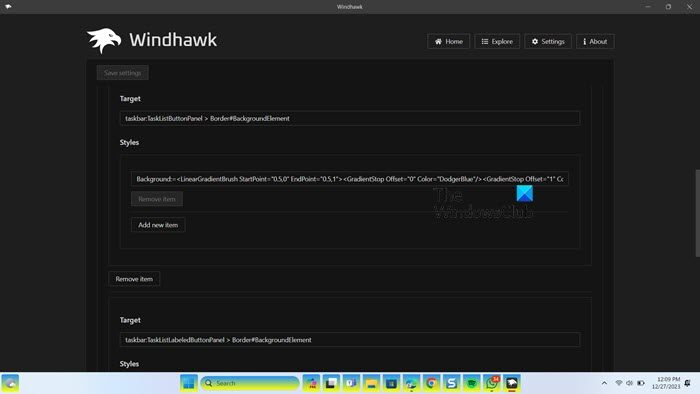
Implementing Gradient Background for Taskbar Buttons
To create a gradient background effect for Taskbar list buttons, configure the following:
- Targets:
taskbar:TaskListButtonPanel > Border#BackgroundElementtaskbar:TaskListLabeledButtonPanel > Border#BackgroundElement
- Style:
Background:=<LinearGradientBrush StartPoint="0.5,0" EndPoint="0.5,1"><GradientStop Offset="0" Color="DodgerBlue"/><GradientStop Offset="1" Color="Yellow"/></LinearGradientBrush>
This setup applies a linear gradient background, transitioning from DodgerBlue to Yellow, to the Taskbar buttons, adding a visually dynamic element. Note that two Target fields are used to ensure the style is applied to both standard and labeled task list button panels.
Hiding the Start Button
For users desiring a minimalist Taskbar, the Start button can be hidden using the following settings:
- Target:
taskbar:ExperienceToggleButton#LaunchListButton[AutomationProperties.AutomationId=StartButton] - Style:
Visibility=Collapsed
This configuration effectively removes the Start button from the Taskbar, streamlining the interface.
Important: After applying Control Styles modifications, it may be necessary to refresh the Taskbar for the changes to take effect. This refresh forces the Taskbar to re-render and apply the newly configured styles.
2. Resource Variables
The “Resource variables” section governs the sizing and spacing of various Taskbar controls. These variables define the structural layout and spacing of elements within the Taskbar. Examples of configurable resource variables include:
TaskbarContextMenuMargin: Adjusts the margin between the Taskbar and the Start button context menu. This variable controls the spacing around the context menu when accessed from the Start button.ContextMenuMargin: Modifies the margin between the Taskbar and the notification area context menu. This variable controls the spacing around context menus accessed from the system tray icons.MediumTaskbarButtonExtent: Determines the width of standard Taskbar buttons. Adjusting this variable alters the horizontal size of application buttons on the Taskbar.
Note: After modifying Control Styles or Resource Variables, it is crucial to click the “Save Settings” button to persist the changes.
For users interested in examining the underlying code modifications resulting from these customizations, the “Source Code” tab provides a view of the generated code. However, direct editing of the source code is not permitted through this interface.
To manage updates, Taskbar Styler includes update, disable, and remove functionalities. The “Update” button facilitates the installation of new versions when available. The “Disable” button temporarily deactivates the tool, while the “Remove” button uninstalls Taskbar Styler.
Windhawk Taskbar Styler empowers users to significantly personalize their Windows 11 Taskbar beyond the default settings, offering a wide range of visual and structural customizations.
Frequently Asked Questions about Windows 11 Taskbar Customization
Can you customize the Windows 11 taskbar?
Yes, the Windows 11 Taskbar is customizable. Microsoft provides basic customization options through the Settings app, accessible via Win + I, then navigating to Personalization > Taskbar. These built-in settings allow for adjustments to Taskbar behaviors and some visual aspects. However, for more extensive and granular customization, tools like Windhawk Taskbar Styler offer advanced capabilities, enabling users to tailor the Taskbar to their specific aesthetic and functional requirements.
How do you customize your desktop in Windows 11?
Desktop customization in Windows 11 is managed through the Settings app under Personalization. Navigate to Settings > Personalization to access options for customizing various desktop elements, including:
- Background: Change desktop wallpapers and slideshow settings.
- Colors: Adjust accent colors and system-wide color schemes.
- Themes: Apply pre-designed themes that bundle backgrounds, colors, and sounds.
- Lock screen: Customize the appearance of the lock screen.
- Taskbar: Configure Taskbar behaviors and basic appearance settings.
- Start menu: Personalize the Start menu layout and content.
- Fonts: Modify system fonts.
These settings provide comprehensive control over the visual presentation of the Windows 11 desktop environment.
We encourage you to explore the customization possibilities with Windhawk Taskbar Styler and share your personalized Taskbar designs and experiences in the comments below!
Post a Comment