Fixing Error 0xC004F042: KMS Activation Issues and Solutions
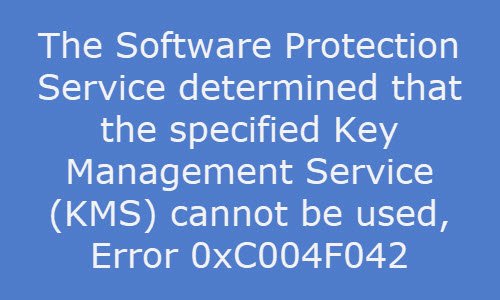
Volume Licensing Activation Error code 0xC004F042 is a common issue encountered in environments utilizing Key Management Service (KMS) for software activation. This error typically arises when a client machine, attempting to activate its Windows license through a KMS host, is unsuccessful. The complete error message clearly states the problem: “The Software Protection Service determined that the specified Key Management Service (KMS) cannot be used, Error 0xC004F042.” Understanding the root causes and effective solutions is crucial for maintaining seamless operations in organizations that rely on volume licensing. This article will delve into the common reasons behind this error and provide step-by-step solutions to rectify it, ensuring your systems are properly activated and compliant.
Understanding Error 0xC004F042
The error code 0xC004F042 specifically indicates a failure in communication or compatibility between a KMS client and its designated KMS host. In essence, when a computer configured as a KMS client tries to activate its Windows operating system by contacting the KMS server, the server is unable to validate and activate the client. This situation can stem from a variety of configuration issues, ranging from incorrect key types to version mismatches and service-related problems. It is important to systematically investigate each potential cause to pinpoint the exact reason for the activation failure and implement the appropriate fix.
Key Management Service (KMS) is a volume activation method that allows organizations to activate Microsoft products within their network, eliminating the need for individual product keys for each machine. Instead, a KMS host server is activated with a volume license key, and then this server activates client computers within the network. This system is designed for efficient and centralized license management, particularly in larger enterprise environments. When error 0xC004F042 occurs, it disrupts this streamlined process, hindering the activation of client machines and potentially leading to reduced functionality or compliance issues.
Common Causes of Error 0xC004F042
Several factors can contribute to the emergence of the 0xC004F042 error. Identifying these potential causes is the first step towards effective troubleshooting. The most prevalent reasons for this error are related to the type of license key being used, compatibility issues between the client and server versions, and the operational status of essential services on the KMS host. Let’s explore each of these causes in detail to understand how they lead to activation failures.
1. Incorrect KMS Key Usage
One of the primary reasons for error 0xC004F042 is attempting to use an inappropriate key for KMS client activation. KMS keys are specifically designed for volume licensing environments and are not interchangeable with retail or MAK (Multiple Activation Key) product keys. If a system administrator mistakenly attempts to activate a KMS client using a generic public KMS key or a MAK key intended for a different activation method, the KMS host will reject the activation request, resulting in the 0xC004F042 error. It is crucial to ensure that the correct KMS client setup key is installed on the client machines.
Furthermore, public KMS keys available online are not legitimate for activating volume licensed products. These keys might seem to work initially but are often quickly blacklisted by Microsoft. Relying on such keys can lead to temporary activation followed by eventual deactivation and compliance issues. For legitimate KMS activation, organizations must utilize the KMS keys provided through their volume licensing agreements. These keys are designed to work exclusively with a properly configured KMS host server within the organization’s network.
2. Version Mismatch Between Client and KMS Host
Another significant cause of 0xC004F042 error is version incompatibility between the KMS client and the KMS host. For successful activation, the operating system version of the KMS client must be supported by the version of the KMS host. If, for instance, a KMS host is running an older version of the KMS software that does not support the newer Windows version on the client machine, the activation will fail and trigger the error. This is a common scenario when organizations upgrade their client operating systems but fail to update their KMS host server accordingly.
To prevent version mismatch issues, it is essential to ensure that both the KMS host and the client machines are running compatible versions of the KMS software and operating systems. Microsoft regularly releases updates to the KMS host software to support new Windows versions. System administrators must proactively update their KMS host servers whenever they deploy newer Windows versions in their environment. Checking the Microsoft Volume Licensing Service Center for the latest KMS host setup and ensuring compatibility with the client operating systems is a critical step in preventing this type of activation error.
3. Disabled Software Protection Service on KMS Server
The Software Protection Service is a core component of Windows that manages software licensing and activation processes, including KMS activation. If this service is disabled or not running correctly on the KMS host server, it will be unable to process activation requests from KMS clients. Consequently, client machines attempting to activate through the KMS host will encounter the 0xC004F042 error. Ensuring that the Software Protection Service is enabled and running on the KMS host is paramount for successful KMS activation.
The Software Protection Service is responsible for downloading, installing, and enforcing digital licenses for Windows and other Microsoft software. It plays a critical role in the KMS activation process by validating license keys and issuing activation tokens to client machines. If this service is inadvertently disabled, either manually or due to system misconfiguration, the KMS host will become non-functional, leading to activation failures across the network. Regularly verifying the status of the Software Protection Service on the KMS host and setting it to start automatically ensures the continuous availability of KMS activation services.
Step-by-Step Solutions to Resolve Error 0xC004F042
Addressing error 0xC004F042 requires a systematic approach, starting with verifying the key type, checking version compatibility, and ensuring the Software Protection Service is running. By following these troubleshooting steps, administrators can effectively diagnose and resolve the activation issue, restoring KMS functionality and ensuring proper software licensing. Let’s examine each solution in detail to guide you through the resolution process.
Solution 1: Verify KMS Key Type
The first step in resolving error 0xC004F042 is to confirm that you are using the correct KMS key for client activation. Ensure that the KMS client is configured with a KMS Client Setup Key and not a generic public KMS key or a MAK key. KMS Client Setup Keys are specific to each Windows edition and are designed to point the client machine to the KMS host for activation. These keys are typically pre-installed in volume license editions of Windows, but it’s worth verifying their presence and correctness.
To check the installed product key on a KMS client, you can use the slmgr.vbs /dlv command in an elevated Command Prompt. This command displays detailed licensing information, including the product key type and activation status. If the output indicates a generic volume license key or a key that is not KMS-specific, you may need to install the correct KMS Client Setup Key for your Windows edition. Microsoft provides a list of KMS Client Setup Keys for different Windows versions and editions, which can be found on their official documentation. Using the slmgr.vbs /ipk <KMS Client Setup Key> command in an elevated Command Prompt can be used to replace an incorrect key with the correct KMS Client Setup Key.
Solution 2: Ensure Version Compatibility
Next, verify that the versions of the KMS host and the client machines are compatible. Check the operating system version of both the KMS host server and the client computers. Ensure that your KMS host is running a version of the KMS software that supports the Windows version installed on the clients. If there’s a version mismatch, you need to upgrade your KMS host to a compatible version. Microsoft regularly updates the KMS host software to support newer Windows releases.
To check the version of the KMS host, you can examine the installed updates on the KMS host server and refer to Microsoft’s documentation to determine the supported client operating systems. For client machines, the operating system version can be easily found in the System settings. If you identify a version incompatibility, the primary solution is to upgrade the KMS host. This typically involves downloading and installing the latest KMS host setup package from the Microsoft Volume Licensing Service Center. After upgrading the KMS host, attempt to activate the client machines again to see if the error is resolved.
Solution 3: Enable and Start Software Protection Service
The Software Protection Service must be running on the KMS host for activation to succeed. Verify the status of this service and ensure it is set to Automatic (Delayed Start) and is currently running. If the service is disabled or stopped, KMS activation will fail, leading to error 0xC004F042. You can manage services using the Services snap-in (services.msc).
To access the Services snap-in, press Win + R, type services.msc, and press Enter. In the Services window, locate the Software Protection service. Double-click on it to open its properties. In the properties window, ensure that the Startup type is set to Automatic (Delayed Start). If it is set to Disabled or Manual, change it to Automatic (Delayed Start). Next, check the Service status. If the service is stopped, click the Start button to start it. After starting the service and verifying the startup type, attempt KMS activation again from a client machine. This action often resolves error 0xC004F042 if the service was the underlying issue.
Solution 4: Contact Microsoft Support
If you have exhausted all the above troubleshooting steps and are still encountering error 0xC004F042, it may be necessary to contact Microsoft Support for further assistance. Especially if you suspect issues related to your volume licensing agreement or KMS host server configuration that are beyond standard troubleshooting, Microsoft support can provide expert guidance and deeper investigation. They can help verify your licensing status, examine your KMS host setup, and provide specific solutions tailored to your environment.
Microsoft provides various support channels, including online chat, phone support, and email support, depending on your region and support agreement. When contacting support, be prepared to provide detailed information about your environment, including your volume licensing agreement details, KMS host server operating system and version, client operating system versions, and the troubleshooting steps you have already taken. Providing screenshots of the error message and relevant service statuses can also expedite the support process. Microsoft support is equipped to handle complex licensing issues and can often resolve problems that are not easily addressed through standard troubleshooting procedures.
Conclusion
Successfully resolving error 0xC004F042 requires a methodical approach, focusing on key aspects of KMS activation. By verifying the KMS key type, ensuring version compatibility, and confirming the Software Protection Service is operational, you can address the most common causes of this error. In situations where standard solutions are insufficient, engaging Microsoft Support is a valuable recourse to ensure your volume licensing environment functions correctly. Maintaining a properly configured and updated KMS infrastructure is essential for seamless software activation and compliance within your organization.
We hope this guide has been helpful in resolving error 0xC004F042. If you have any further questions or experiences with this error, please feel free to share them in the comments below. Your insights can be valuable to others facing similar challenges.
Post a Comment