Speccy: Get Detailed Windows 11 System Specs for Free
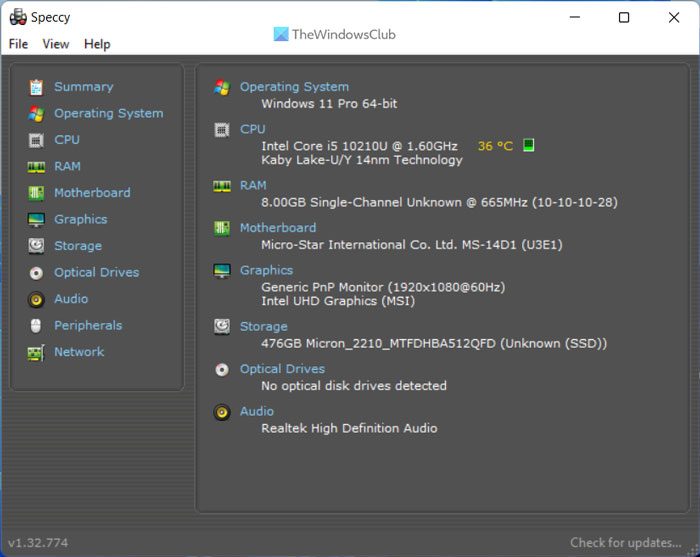
Do you ever find yourself needing to know the intricate details of your Windows 11 system but struggle to navigate through multiple settings menus to gather all the information? Understanding your computer’s configuration is crucial for various reasons, from troubleshooting performance issues to ensuring software compatibility and planning hardware upgrades. While Windows 11 offers built-in tools to access some system information, they are often scattered and lack the comprehensive overview that many users desire.
Introducing Speccy: Your Comprehensive System Information Tool
Speccy emerges as a robust and user-friendly freeware solution designed to provide you with a complete and detailed snapshot of your Windows PC’s specifications. This powerful tool consolidates all essential system information into a single, easily navigable interface, eliminating the need to hunt through different parts of your operating system. Whether you are a tech enthusiast, a system administrator, or simply a curious user, Speccy offers valuable insights into the inner workings of your computer.
Why Choose Speccy?
While basic system information can be accessed through methods like right-clicking “This PC” and selecting “Properties” or delving into the Device Manager, Speccy elevates the experience by presenting all crucial details in one centralized location. This streamlined approach saves time and effort, especially when you need to quickly grasp your system’s overall configuration. Speccy goes beyond basic information, offering in-depth statistics on virtually every hardware component within your computer.
Unveiling Your Hardware Configuration
Speccy meticulously catalogues a wide array of hardware components, providing granular details about each. This includes:
- CPU (Central Processing Unit): Gain insights into the processor’s manufacturer, model, core count, clock speed, cache, and current temperature. Understanding your CPU is vital for assessing processing power and identifying potential bottlenecks.
- Motherboard: Discover details about your motherboard’s manufacturer, model, chipset, BIOS version, and sensor information. The motherboard is the central hub of your system, and its specifications can be important for compatibility and upgrades.
- RAM (Random Access Memory): Explore the total RAM installed, memory type (DDR4, DDR5, etc.), size, channels, timings, and current memory usage. RAM is crucial for multitasking and application performance, and Speccy provides a clear picture of your memory setup.
- Graphics Cards (GPU - Graphics Processing Unit): Identify your graphics card(s), including the manufacturer, model, memory size, and current temperature. For gamers and professionals working with graphics-intensive applications, GPU information is paramount.
- Hard Disks and Storage Devices: Obtain details about your hard drives, SSDs (Solid State Drives), including model, capacity, file system, health status (S.M.A.R.T. attributes), and temperature. Monitoring storage devices is essential for data integrity and performance.
- Optical Drives: If you have optical drives, Speccy will list them along with their capabilities.
- Audio Support: View information about your audio devices, including sound cards and audio codecs.
- Peripherals: Speccy can also provide information on connected peripherals like keyboards and mice.
Beyond simply listing hardware components, Speccy also provides real-time temperature monitoring for key components like the CPU and GPU. This feature is invaluable for assessing system cooling performance and identifying potential overheating issues that could impact stability and longevity.
Getting Started with Speccy
Speccy is readily available for download from its official website, ensuring you obtain a safe and legitimate copy of the software. The installation process is straightforward, guiding you through the necessary steps to get Speccy up and running on your Windows 11 system. While the original article mentioned the installation including CCleaner, users should always pay close attention during installation processes and uncheck any bundled software they do not wish to install.
Finding Full Computer Details: Multiple Approaches
There are several methods to access your computer’s detailed specifications. While Speccy offers a comprehensive and convenient solution, Windows 11 itself provides built-in tools that can be used to gather system information.
Built-in Windows Tools
- System Information (msinfo32.exe): This is a built-in Windows utility that provides a detailed overview of your system’s hardware, system components, and software environment. You can access it by searching for “System Information” in the Taskbar search box. System Information is a powerful tool, but its interface can be less user-friendly compared to Speccy for quickly finding specific details.
- Device Manager (devmgmt.msc): Device Manager lists all the hardware components recognized by Windows. It allows you to view device status, update drivers, and troubleshoot hardware issues. While Device Manager provides hardware information, it is primarily focused on device management rather than presenting a consolidated system overview like Speccy.
- DirectX Diagnostic Tool (dxdiag.exe): This tool is primarily used for diagnosing DirectX related issues, particularly for gaming. However, it also provides information about your system’s display, sound, and input devices, along with some general system specifications.
Third-Party Tools like Speccy
Speccy and other third-party system information tools offer a more user-friendly and often more detailed approach compared to the built-in Windows utilities. They are designed specifically for presenting system specifications in a clear and organized manner. Speccy’s strength lies in its ease of use and the comprehensive information it provides in a single, uncluttered interface.
The Quest for the Best System Information Tool
The market offers a plethora of system information tools for Windows 11 and Windows 10. While Speccy stands out as a highly recommended option, other notable tools are available, each with its own strengths and features.
Speccy vs. CPU-Z
CPU-Z is another popular freeware system information tool, particularly favored by overclockers and hardware enthusiasts. Like Speccy, CPU-Z provides detailed information about the CPU, motherboard, and RAM. However, CPU-Z is more heavily focused on these core components and may not offer the same breadth of information as Speccy regarding storage devices, peripherals, and temperature monitoring. Both Speccy and CPU-Z are known for their clean interfaces and ease of use. The choice between them often comes down to personal preference and specific information needs. If you need a broad overview of your entire system, including temperatures and storage details, Speccy might be more suitable. If you are primarily interested in in-depth CPU, motherboard, and RAM details, especially for overclocking or performance tuning, CPU-Z is an excellent choice.
Other System Information Tool Alternatives
Beyond Speccy and CPU-Z, several other system information tools are worth considering:
- Sandra Lite (SiSoftware Sandra): Sandra is a powerful suite of system analysis and diagnostic tools, with a free “Lite” version available. Sandra offers incredibly detailed system information and benchmarking capabilities, making it a favorite among advanced users and professionals. However, Sandra’s interface can be more complex than Speccy or CPU-Z, and its extensive feature set might be overkill for users seeking a quick system overview.
- MiTeC System Information X: This tool provides a comprehensive range of system information, presented in a tabbed interface. MiTeC System Information X is known for its detailed reporting and includes features like network information and software listing, in addition to hardware details.
- HiBit System Information: HiBit System Information is a lightweight and portable tool that offers a good balance of features and ease of use. It provides detailed hardware and software information and includes system monitoring capabilities.
- Hardware Identify: As the name suggests, Hardware Identify focuses on identifying unknown hardware components. This can be particularly useful when troubleshooting driver issues or identifying hardware without readily available documentation.
Choosing the “best” system information tool ultimately depends on your individual needs and preferences. Speccy excels in providing a user-friendly, comprehensive overview of your system’s hardware, making it an excellent choice for a wide range of users. For users with more specialized needs, such as in-depth benchmarking or network analysis, tools like Sandra or MiTeC System Information X might be more suitable. For quick and focused CPU, motherboard, and RAM details, CPU-Z remains a strong contender.
Conclusion
Speccy provides an invaluable service by offering a free, user-friendly, and comprehensive way to understand your Windows 11 system’s specifications. Whether you are troubleshooting a technical issue, planning a hardware upgrade, or simply curious about your computer’s inner workings, Speccy equips you with the knowledge you need at your fingertips. Its ability to consolidate detailed hardware information and temperature monitoring into a single, intuitive interface makes it a standout tool in the realm of system utilities. Explore Speccy and unlock a deeper understanding of your Windows 11 machine.
What are your go-to system information tools? Do you have any experiences with Speccy or other similar software that you’d like to share? Join the conversation in the comments below!
Post a Comment