Unexpected Computer Restart? Troubleshooting the Error and Preventing Future Issues
Encountering the error message, “The computer restarted unexpectedly or encountered an unexpected error,” can be a frustrating roadblock, especially when you are in the process of crucial tasks like using a recovery disk or installing a fresh operating system such as Windows 11 or Windows 10. This error typically surfaces when attempting to restore your Windows system to its factory default settings using a recovery disk. Alongside this primary message, you might also observe related notifications like “Setup is preparing your computer for first use,” which further indicates an issue during the initial setup phase of Windows.
This error disrupts the intended process, halting the installation or recovery and often leaving users unsure of how to proceed. It signals a problem within the Windows setup sequence that prevents the operating system from initializing correctly. Understanding the root cause and applying the correct troubleshooting steps are essential to overcome this obstacle and successfully complete your desired task, whether it’s recovering your system or installing a new version of Windows. This guide will walk you through the necessary steps to resolve this error and get your system back on track.
The computer restarted unexpectedly or encountered an unexpected error
When faced with the error message, “The computer restarted unexpectedly or encountered an unexpected error,” the initial recommended action is to simply click OK on the error dialog box. Sometimes, this simple action is sufficient to resolve the temporary glitch causing the error, and the system might proceed with the installation or recovery process as intended. It is always worth trying this first as a quick and easy potential solution.
However, if clicking OK does not resolve the issue, and instead, your Windows system enters into a reboot loop, where it continuously restarts without successfully booting, then more advanced troubleshooting steps are required. A reboot loop can be particularly disruptive, preventing you from accessing your operating system and making it seem like your system is stuck in a perpetual cycle of starting and failing. In such cases, manually intervening to break the loop and apply a fix becomes necessary. The following steps outline a method to address this persistent error using the Registry Editor.
Step 1: Restart your computer and keep pressing the F8 key
The first step in troubleshooting the reboot loop and the “unexpected restart” error is to initiate a restart of your computer. As your computer begins to reboot, you need to repeatedly press the F8 key. This action is crucial as it aims to interrupt the normal Windows boot process and access the Advanced Boot Options menu.
The timing of pressing the F8 key is important. You should start pressing it immediately after the computer restarts, but before the Windows logo appears. If you see the Windows logo, it’s likely you’ve missed the window to enter Advanced Boot Options, and you may need to restart and try again. On some newer systems that boot very quickly, the F8 key might not work. In such cases, you may need to try alternative methods to access Advanced Startup Options, such as interrupting the boot process multiple times by power cycling the machine (turning it off and on again abruptly during startup). Consult your motherboard or computer manufacturer’s documentation for the specific key or method to access boot options if F8 is ineffective.
Step 2: Click the Command Prompt option in the Advanced options panel
Once you successfully access the Advanced Boot Options menu (also sometimes referred to as Windows Recovery Environment or WinRE), you will be presented with a list of options to troubleshoot and repair your system. From this menu, you need to navigate and select the Command Prompt option.
The Command Prompt is a powerful command-line interpreter that allows you to interact directly with the operating system using text-based commands. Selecting this option will open a command prompt window in the recovery environment, providing you with a text-based interface to execute commands and perform system-level operations. This is necessary to access and modify the Windows Registry, which is the next step in resolving the “unexpected restart” error. Using the Command Prompt in the recovery environment allows you to make changes to the system even when the normal graphical user interface of Windows is inaccessible due to the error.
Step 3: Type regedit and press the Enter button
With the Command Prompt window now open in the Advanced Boot Options environment, you need to launch the Registry Editor. To do this, simply type the command regedit into the command prompt. Ensure you type it correctly, as commands in the command prompt are case-insensitive but need to be spelled accurately.
After typing regedit, press the Enter key. This command will initiate the Registry Editor application. The Registry Editor is a built-in Windows tool that allows you to view and modify the system registry. The registry is a hierarchical database that stores low-level settings for the Microsoft Windows operating system and for applications that opt to use the registry. It contains information and settings for all hardware, operating system software, most non-operating system software, and per-user settings. Modifying the registry should be done with caution, as incorrect changes can lead to system instability or inoperability. However, in this case, we are targeting a specific registry key known to be associated with the “unexpected restart” error.
Step 4: Navigate to ChildCompletion in HKLM
Once the Registry Editor is open, you need to navigate to a specific location within the registry hierarchy to find the setting that needs to be modified. The registry is organized in a tree-like structure with several main branches, known as hives. The hive we need to access is HKLM, which stands for HKEY_LOCAL_MACHINE. This hive contains settings that are specific to the local computer.
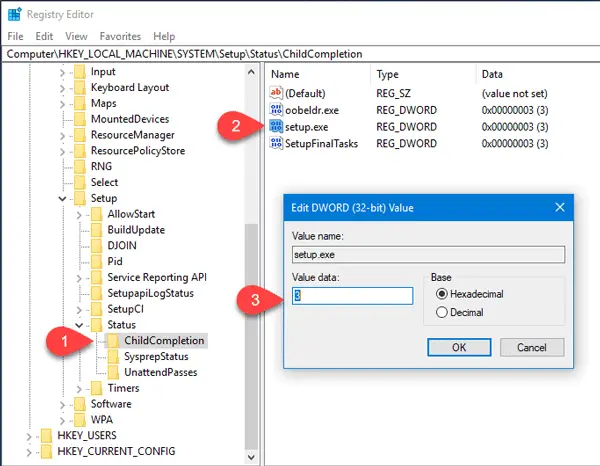
Within HKLM, you need to navigate through a series of subkeys to reach the target key. The full path to the key is: HKLM\SYSTEM\SETUP\STATUS\ChildCompletion. You can navigate through this path by expanding each key in the left-hand pane of the Registry Editor window, similar to navigating folders in File Explorer. Start by expanding HKLM, then expand SYSTEM, then SETUP, then STATUS, and finally, select ChildCompletion. Carefully follow this path to ensure you are in the correct location in the registry, as making changes in the wrong location can have unintended consequences.
Step 5: Double-click on the setup.exe REG_DWORD value
After navigating to the ChildCompletion key in the Registry Editor, you will see the contents of this key displayed in the right-hand pane. Look for a value named setup.exe. This value is typically of the type REG_DWORD, which stands for Registry DWORD (Double Word), a 32-bit number. It is this specific registry value that we need to modify to resolve the “unexpected restart” error.
To modify the value of setup.exe, you need to double-click on it with your mouse. Double-clicking will open an “Edit DWORD (32-bit) Value” dialog box, allowing you to change the data associated with this registry value. Ensure you are double-clicking on the setup.exe value and not any other value listed in the right-hand pane.
Step 6: Set the Value data as 3
In the “Edit DWORD (32-bit) Value” dialog box that appears after double-clicking setup.exe, you will see a field labeled “Value data”. This field currently holds the existing numerical value for the setup.exe registry entry. The default or current value might be 1, or in some cases, it could be another number.
To resolve the “unexpected restart” error, you need to change the Value data to 3. Carefully delete the existing value in the “Value data” field and type in the number 3. Ensure you are only changing the numerical value and not accidentally altering any other settings in the dialog box. Setting the value to 3 is instructing the Windows setup process to proceed to a later stage, effectively bypassing the condition that was causing the error and the subsequent reboot loop.
Step 7: Click the OK button
Once you have entered 3 as the Value data in the “Edit DWORD (32-bit) Value” dialog box, the next step is to save the change. To do this, locate and click the “OK” button within the dialog box. Clicking OK will confirm the modification you made to the setup.exe registry value and close the dialog box.
After clicking OK, you will be returned to the main Registry Editor window. You should now see that the Data column for the setup.exe value in the right-hand pane reflects the new value you set, which is 0x00000003 (3). This confirms that the change to the registry has been successfully applied.
Step 8: Close the Registry Editor and restart your computer
Having successfully modified the setup.exe registry value, the next step is to exit the Registry Editor application. You can close the Registry Editor by clicking the File menu and selecting Exit, or by simply clicking the close button (X) in the top-right corner of the window.
Once the Registry Editor is closed, you need to restart your computer for the changes you made to the registry to take effect. Restarting the system will allow Windows to re-initialize and apply the modified registry settings during the boot process. After restarting, the system should hopefully boot normally and proceed past the point where the “unexpected restart” error was occurring. The Windows installation or recovery process should now be able to continue without interruption.
By following these steps, you have manually adjusted a critical registry setting that is often associated with the “unexpected restart” error during Windows setup or recovery. This intervention can effectively bypass the error and allow the system to complete the intended process.
How do I fix Windows installation encountered an unexpected error?
Another closely related error message you might encounter during Windows installation is “Windows installation encountered an unexpected error”. While the wording is slightly different from “The computer restarted unexpectedly or encountered an unexpected error”, the underlying issues and some of the troubleshooting steps can be similar or overlapping.
If you receive the “Windows installation encountered an unexpected error” message while installing Windows 11 or Windows 10, a common cause is related to the installation media itself. Specifically, it is possible that the installation media, which could be a USB drive or a DVD, has been ejected from your computer prematurely or has become disconnected during the installation process. The Windows installation process relies on continuous access to the installation media to copy files and configure the system. If this media is removed or becomes unavailable, the installation can fail and trigger this error message.
Therefore, the first step to troubleshoot this error is to check if your installation media is still properly connected and intact. If you are using a USB drive, ensure it is securely plugged into a USB port and has not been accidentally removed. If you are using a DVD, verify that it is still in the DVD drive and that the drive is functioning correctly. In some cases, the installation media itself might be corrupted or faulty. If you suspect this, you may need to try creating new installation media from a reliable source.
If the installation media is confirmed to be properly connected and in good condition, the next step is to restart the installation process. Sometimes, the error might be transient or caused by a temporary glitch. Restarting the installation from the beginning can often bypass the error and allow the installation to proceed smoothly. Make sure to properly boot from your installation media again and follow the on-screen prompts to initiate the Windows installation process anew.
How do I fix Unexpected error in Windows 11/10?
The error message “Unexpected error in Windows 11/10” is often just a variation or a shorter version of “The computer restarted unexpectedly or encountered an unexpected error”. Users sometimes report seeing this more generic message, especially in slightly different contexts during the Windows setup or boot process.
In most cases, when you encounter the “Unexpected error in Windows 11/10” message, the underlying cause and the recommended solution are the same as for the more verbose “The computer restarted unexpectedly or encountered an unexpected error” message. This means that the registry fix we discussed earlier, which involves setting the Value data of the setup.exe REG_DWORD value to 3 in the Registry Editor, is also the primary solution for this more generalized error message.
Therefore, if you are facing an “Unexpected error in Windows 11/10” during Windows installation or recovery and are experiencing a reboot loop or inability to proceed, you should apply the same steps outlined previously for modifying the registry. Access the Advanced Boot Options, open the Command Prompt, launch regedit, navigate to HKLM\SYSTEM\SETUP\STATUS\ChildCompletion, and change the Value data of setup.exe to 3.
By applying this registry modification, you are addressing the common underlying issue that triggers both the specific “The computer restarted unexpectedly…” error and the more general “Unexpected error in Windows 11/10” message during the Windows setup process. After making this registry change and restarting your computer, you should be able to resume the Windows installation or recovery process and successfully boot into your operating system.
If you have successfully resolved this error using these steps, or if you have encountered other methods that worked for you, please feel free to share your experiences and insights in the comments below. Your contributions can be valuable to other users facing similar challenges.
Post a Comment