Unlock 7-Zip Power: Integrate it into Your Windows 11 Right-Click Menu
7-Zip stands out as a highly favored file compression tool, often lauded as a robust and free alternative to WinRAR. Despite its widespread use and powerful capabilities, 7-Zip lacks a convenient feature that many users appreciate in WinRAR: direct integration into the Windows right-click context menu. This means that users seeking to quickly archive files or folders using 7-Zip through a simple right-click action will find themselves navigating through additional menus, which can be less efficient for frequent tasks. While 7-Zip offers a comprehensive interface and strong compression, the absence of seamless right-click integration can be a minor inconvenience for users accustomed to quicker workflows.
The Need for Right-Click Integration
The right-click context menu in Windows is designed to provide users with quick access to common actions related to files and folders directly from their desktop or file explorer. For file archiving, this means the ability to compress files or extract archives with just a couple of clicks, significantly streamlining the process. Software like WinRAR has long offered this integration, allowing users to simply right-click on a file or folder, select “Add to archive,” and quickly create a compressed file. This direct access is particularly useful for users who frequently manage compressed files, saving valuable time and effort.
For 7-Zip users, the standard method involves right-clicking, selecting “Show more options,” then navigating through another submenu to find 7-Zip options. This multi-step process, while functional, is less intuitive and slower compared to a direct right-click integration. The desire for a more streamlined approach has led users to seek solutions that can bring 7-Zip’s powerful features directly to the context menu, mirroring the convenience offered by other archiving tools. This demand highlights the importance of user experience and the value of quick access features in everyday software usage.
Why 7-Zip Lacks Direct Context Menu Integration
The reason 7-Zip doesn’t natively offer direct right-click menu integration is rooted in its design philosophy and development history. 7-Zip, being an open-source project, prioritizes core functionality and efficiency. While context menu integration is a user-friendly feature, it is not considered a core requirement for file archiving functionality itself. Furthermore, managing context menu entries in Windows can sometimes lead to system clutter if not handled carefully, and 7-Zip developers might have opted for a more streamlined installation process focusing on its primary features.
Additionally, 7-Zip’s development has been more focused on cross-platform compatibility and strong compression algorithms rather than deeply integrating with specific operating system features like the Windows context menu. While 7-Zip is highly customizable and offers various command-line options and interface configurations, direct context menu integration as a default feature was likely not a primary design goal. This focus on core functionality and broader compatibility has made 7-Zip a powerful and versatile tool, even if it initially lacks some of the user interface conveniences found in other software.
Introducing NanaZip: The 7-Zip Enhanced Experience
To bridge the gap and bring the power of 7-Zip to the Windows right-click menu, NanaZip emerges as an excellent solution. NanaZip is not a completely separate archiving tool but rather a modern, open-source fork of 7-Zip. It is specifically designed to enhance the user experience on modern Windows systems, particularly Windows 10 and Windows 11. By forking from 7-Zip’s source code, NanaZip retains all the core functionalities and strong compression capabilities of 7-Zip while adding user-centric improvements, most notably, seamless context menu integration.
NanaZip’s development is driven by the desire to provide a more user-friendly interface and better integration with modern Windows features, including enhanced security and updated platform compatibility. It aims to make the robust features of 7-Zip more accessible and convenient for everyday users, especially those who appreciate the efficiency of right-click context menus. By using NanaZip, users can enjoy the familiar power of 7-Zip with the added benefit of streamlined workflow through direct context menu options.
Installing NanaZip: A Simple Process
Getting NanaZip and integrating it into your right-click menu is remarkably straightforward, thanks to its availability on the Microsoft Store. The installation process is designed to be user-friendly, ensuring that even users with limited technical experience can easily set it up. Here are the simple steps to install NanaZip and unlock right-click menu integration for file archiving:
- Access the Microsoft Store: Open the Microsoft Store application on your Windows 10 or Windows 11 system. You can find it in your Start Menu or by searching for “Microsoft Store” in the taskbar search.
- Search for NanaZip: In the Microsoft Store search bar, type “NanaZip” and press Enter. The NanaZip application should appear as a top result.
- Install NanaZip: Click on the NanaZip application icon to go to its store page. Then, click the “Install” button. The Microsoft Store will handle the download and installation process automatically.
- Verification (Optional): Once installed, you can verify the installation by checking your list of installed applications in Windows Settings or by searching for “NanaZip” in your Start Menu.
After installation, NanaZip seamlessly integrates itself into your Windows right-click context menu without requiring any further configuration. This ease of installation and automatic integration makes NanaZip a convenient solution for users looking to enhance their file archiving workflow.
Utilizing NanaZip via Right-Click Menu
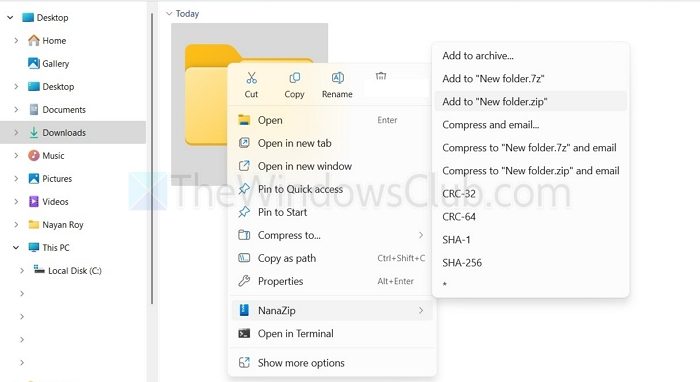
Once NanaZip is installed, using it to archive or extract files through the right-click menu is intuitive and efficient. The integration is designed to be seamless, providing quick access to essential archiving functions directly from the context menu. Here’s how to use NanaZip via the right-click menu:
- Select Files or Folders: Navigate to the files or folders you wish to archive using File Explorer. Select the desired items by clicking on them or using click-and-drag to select multiple items.
- Right-Click: Right-click on the selected files or folders. This will open the context menu.
- Locate NanaZip Option: In the context menu, you will now see a “NanaZip” entry. Hovering over this entry will expand a submenu showing various NanaZip options.
- Choose Archiving or Extraction Option: From the NanaZip submenu, you can select options such as:
- “7-Zip”: This option typically leads to a further submenu allowing you to choose specific 7-Zip actions like “Add to archive…”, “Extract Here”, “Extract to…”, etc.
- Direct Archiving Options: NanaZip may also provide direct options like “Compress to 7z”, “Compress to ZIP”, etc., for quicker archiving in common formats.
- Extraction Options: For archive files (like .zip, .7z, .rar), right-clicking will offer options like “Extract Here”, “Extract to…”, directly under the NanaZip menu.
By selecting the appropriate option from the NanaZip context menu, you can quickly perform your desired archiving or extraction tasks without needing to open the full NanaZip application interface. This streamlined process significantly enhances workflow efficiency, especially for frequent file compression and decompression operations.
NanaZip vs. 7-Zip: Key Differences and Similarities
While NanaZip is built upon 7-Zip and shares its core strengths, there are key differences and similarities that users should be aware of. Understanding these distinctions can help users appreciate the value proposition of NanaZip and choose the right tool for their needs.
Similarities:
- Core Compression Engine: Both NanaZip and 7-Zip utilize the same powerful 7-Zip compression engine. This means they offer comparable compression ratios and support the same wide range of archive formats, including 7z, ZIP, TAR, GZIP, BZIP2, XZ, and RAR for extraction.
- Compression Capabilities: In terms of compression strength and speed, NanaZip performs similarly to 7-Zip when using the same settings and formats. Users can expect the same level of file size reduction and archive integrity from both tools.
- Format Support: Both applications boast extensive format support, capable of handling a vast array of archive types for both compression and decompression. This versatility makes them suitable for a wide range of archiving tasks.
Differences:
| Feature | 7-Zip | NanaZip |
|---|---|---|
| Context Menu Integration | Requires manual configuration or third-party tools for seamless right-click integration. | Offers seamless, built-in right-click context menu integration upon installation. |
| User Interface | Classic, functional interface. | Modern, user-friendly interface, designed for Windows 10/11. |
| Windows Integration | Basic Windows integration. | Enhanced integration with modern Windows features, including better security and platform compatibility. |
| Update Frequency | Less frequent updates. | More frequent updates, often aligning with Windows platform updates. |
| Distribution | Primarily distributed via official website. | Distributed via Microsoft Store, simplifying installation and updates. |
| Open Source | Open Source. | Open Source, forked from 7-Zip. |
In essence, NanaZip can be seen as a user-experience-focused enhancement of 7-Zip. It retains the core power and versatility of 7-Zip while adding crucial usability improvements, particularly in terms of Windows integration and ease of access through the right-click context menu. For users who value seamless integration and a modern user experience, NanaZip presents a compelling alternative or upgrade to standard 7-Zip.
Comprehensive Format Support in NanaZip
One of the standout features of NanaZip, inherited from its 7-Zip foundation, is its extensive support for a wide array of archive formats. This broad compatibility ensures that users can handle virtually any type of compressed file they encounter, whether for compression, decompression, or archive management. NanaZip supports both popular and less common formats, making it a versatile tool for various archiving needs.
Key Supported Formats:
- 7z: 7-Zip’s native format, known for its high compression ratio and strong encryption. NanaZip fully supports creating, extracting, and managing 7z archives.
- ZIP: A widely used and universally compatible format. NanaZip offers excellent support for ZIP archives, including ZIPX, and various compression methods within ZIP.
- RAR: A proprietary format commonly used for distribution. NanaZip can extract RAR archives, although creating RAR archives is typically associated with WinRAR.
- TAR: A format often used in Unix-like systems for bundling files. NanaZip supports TAR and its compressed variants.
- GZIP (gz): A popular compression format, often used for single-file compression, especially on Unix-like systems. NanaZip supports both compression and decompression of GZIP files.
- BZIP2 (bz2): Another compression format known for its high compression ratio, often used in Unix environments. NanaZip supports BZIP2 files.
- XZ: A newer compression format offering very high compression ratios. NanaZip supports XZ format for both compression and decompression.
- WIM: Windows Imaging Format, used for system images and deployment. NanaZip can handle WIM files, providing access to their contents.
- And Many More: In addition to these, NanaZip supports numerous other formats, including ISO, CAB, MSI, NSIS, and various disk image formats.
This comprehensive format support ensures that NanaZip users are equipped to handle a vast majority of archive files without needing to rely on multiple different archiving tools. The ability to work with such a wide range of formats directly from the right-click menu further enhances its utility and convenience.
Conclusion: Streamline Your Archiving Workflow with NanaZip
For Windows users seeking to enhance their file archiving experience, particularly by integrating 7-Zip’s powerful capabilities directly into the right-click context menu, NanaZip provides an ideal solution. By offering seamless context menu integration, a modern user interface, and enhanced compatibility with Windows 10 and 11, NanaZip elevates the usability of 7-Zip without sacrificing its core strengths in compression and format support.
If you value efficiency and a streamlined workflow, installing NanaZip from the Microsoft Store is a simple yet impactful step. It allows you to quickly archive and extract files with just a right-click, saving time and simplifying your daily tasks. Whether you are a frequent user of file compression or occasionally need to manage archives, NanaZip provides a user-friendly and powerful tool that seamlessly integrates into your Windows environment. Embrace the enhanced experience of NanaZip and unlock the full potential of 7-Zip directly from your right-click menu.
Feel free to share your experiences with NanaZip or other file archiving tools in the comments below! Do you find right-click integration essential for your workflow? Let us know your thoughts!
Post a Comment