Unlock Full URLs: A Chrome Address Bar Hack You Need to Know
Google Chrome, in its pursuit of a cleaner and more streamlined user interface, has implemented a feature that, by default, hides the https:// and www prefixes from URLs in the address bar. This design choice, while intended to simplify the browsing experience for the average user, can sometimes be inconvenient for those who require or prefer to see the full web address. For users who prioritize transparency and control over their browsing experience, understanding how to reveal the full URL in Chrome is an essential skill.
Initially, Google provided a temporary solution to view the complete URL. By simply double-clicking within the address bar, the hidden parts of the URL would momentarily appear. While this quick fix offered a way to access the full address when needed, it wasn’t a permanent solution for users who preferred always to have the complete URL visible. This method required repeated actions and was not ideal for users who frequently needed to verify or copy full web addresses.
Displaying Full URLs in Chrome: Methods and Approaches
Fortunately, Chrome offers several methods to ensure that the full URL, including the https:// protocol and www subdomain, is always displayed in the address bar. These methods cater to different user preferences and levels of technical expertise, providing flexibility in how you choose to manage URL visibility. Whether you prefer a simple context menu option or delving into Chrome’s advanced settings, there’s a way to customize the address bar to show full URLs persistently.
Let’s explore the primary methods available to configure Chrome to always show complete URLs. These methods range from straightforward right-click menu selections to adjusting experimental flags within Chrome’s settings. Each approach offers a slightly different way to achieve the same outcome: ensuring you always see the full web address in the Chrome address bar. Understanding these different methods allows you to choose the one that best suits your workflow and technical comfort level.
Temporary Display via Double-Click
As a quick, on-demand solution, Chrome allows users to reveal the full URL temporarily by double-clicking in the address bar. This action expands the displayed URL to include the https:// and www prefixes, providing a momentary glimpse of the complete address. This method is useful for quickly verifying the full URL without permanently changing the address bar display settings.
To utilize this feature, simply navigate to any webpage in Chrome. Observe the address bar, which will likely show a truncated URL. Then, using your mouse, double-click anywhere within the text of the URL displayed in the address bar. You will notice that the full URL, including the previously hidden parts, will now be visible. However, this is only a temporary view. As soon as you click anywhere else on the webpage, the address bar will revert to its default, truncated display.
Enabling “Always show full URLs” via Context Menu
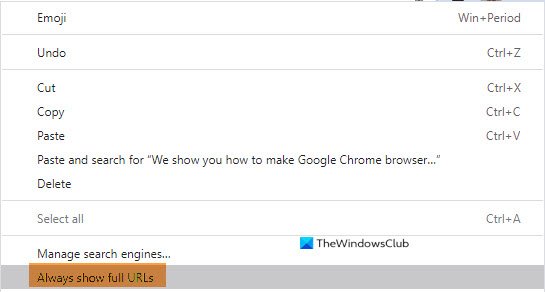
For a more persistent solution, Chrome offers a convenient context menu option that allows you to toggle the “Always show full URLs” setting. This method is incredibly straightforward and user-friendly, requiring just a few clicks to activate. This is often the easiest and most recommended approach for most users who want to permanently display full URLs.
To enable this feature, begin by opening Google Chrome and navigating to any website. Once the page is loaded and the URL is visible in the address bar, right-click anywhere within the address bar itself. A context menu will appear, presenting various options related to the address bar. Within this menu, locate and select the option labeled “Always show full URLs”. Clicking this option will immediately activate the setting. From this point forward, Chrome will consistently display the full URL for all websites you visit, including the https:// and www parts.
Utilizing Chrome Flags for Persistent Full URLs
For users who prefer to delve into Chrome’s more advanced configuration options, or for situations where the context menu option is not available or functioning as expected, Chrome flags provide an alternative method to enable the permanent display of full URLs. Chrome flags are experimental features that allow users to customize and test functionalities that are not yet part of the stable Chrome release.
To use Chrome flags to achieve this, you need to access Chrome’s flags page. In the address bar, type chrome://flags/ and press Enter. This will open the “Experiments” page, which lists various experimental features. In the search bar at the top of the flags page, type “omnibox context menu show full urls”. This will filter the list and highlight the specific flag we need. The flag is labeled “Omnibox context menu show full URLs”. By default, this flag is likely set to “Default”. To enable the persistent display of full URLs, change the dropdown menu next to this flag from “Default” to “Enabled”. After changing the flag setting, Chrome will prompt you to relaunch the browser for the changes to take effect. Click the “Relaunch” button at the bottom of the page. Once Chrome restarts, the full URLs will always be visible in the address bar.
It is important to note that Chrome flags are experimental features and may change or be removed in future Chrome updates. While this method is currently effective, it’s good practice to be aware that the flag’s availability and behavior might be subject to change. The context menu method is generally considered a more stable and user-friendly approach for most users.
Additional Address Bar Tips and Tricks
Beyond displaying full URLs, Chrome’s address bar offers several other useful functionalities that can enhance your browsing efficiency and experience. Understanding these features can further streamline your web navigation and interaction.
Selecting the Entire URL with a Single Click
A simple yet incredibly useful trick is the ability to select the entire URL in the address bar with just a single click. This eliminates the need to manually drag your mouse cursor across the entire address to highlight it for copying or editing. This feature is a significant time-saver, especially when you frequently need to copy and paste URLs.
To select the entire URL, simply click once anywhere within the address bar. Whether you click on the displayed domain name, the path, or any part of the URL text, a single click will instantly highlight the entire address. Once highlighted, you can easily copy the URL using the keyboard shortcut Ctrl+C (or Cmd+C on macOS) or by right-clicking and selecting “Copy” from the context menu. This makes sharing or saving web addresses quick and effortless.
Autofilling Addresses for Forms and More
Chrome’s address bar is not just for navigating websites; it also integrates with Chrome’s autofill feature to streamline form filling and address entry across the web. This functionality saves you time and effort by automatically suggesting and filling in your saved address details when you encounter address fields on websites.
To manage and configure address autofill in Chrome, you need to access Chrome’s settings. Click on the three vertical dots in the top-right corner of the Chrome window to open the Chrome menu. From the menu, select “Settings”. In the Settings menu, navigate to “Autofill and passwords” and then click on “Addresses and more”. Here, you can add, edit, and remove saved address profiles. To add a new address, click the “Add” button. A form will appear where you can enter your address details, including your name, address, city, state, zip code, and phone number. After entering your information, click “Save”. Once your address is saved, Chrome will automatically offer to autofill address forms on websites with your saved details, making online form completion much faster and more convenient.
Revealing Full URLs on Hover for Links
Another helpful feature, especially for security-conscious users, is the ability to reveal the full URL of a link simply by hovering your mouse cursor over it. This allows you to preview the destination of a link before you click on it, helping you avoid potentially malicious or misleading links. This is particularly useful in emails or on websites where links might be disguised or shortened.
When you hover your mouse cursor over a hyperlink on a webpage, the full URL of that link will typically appear in the lower-left corner of your browser window’s status bar. This preview allows you to verify the actual destination of the link before clicking, enhancing your online security and preventing you from inadvertently visiting unwanted websites. Pay attention to this lower-left corner when navigating websites, especially when dealing with unfamiliar links or websites of questionable trustworthiness.
By mastering these address bar functionalities, you can significantly enhance your Chrome browsing experience, improving both efficiency and security. From displaying full URLs to utilizing autofill and link previews, these features offer valuable tools for navigating the web more effectively.
Do you have any other tips and tricks for managing the Chrome address bar? Share your thoughts and questions in the comments below!
Post a Comment