Unlock Powerful Spreadsheets: Exploring the Best Features of LibreOffice Calc
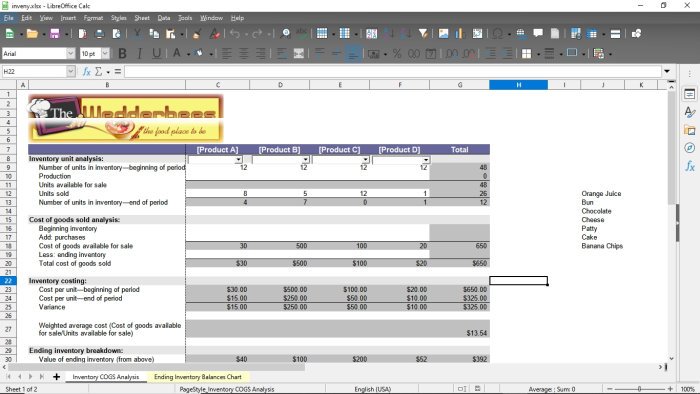
LibreOffice Calc stands out as a compelling alternative to Microsoft Excel, offering a robust suite of tools for spreadsheet management and data analysis. While Microsoft Excel holds a significant position in the industry with its extensive functionalities, LibreOffice Calc provides a powerful and feature-rich experience that caters to a wide array of users. For those seeking a cost-effective yet potent spreadsheet program, Calc presents itself as an excellent option, equipped with unique features that enhance user productivity and streamline data handling processes. Many users are yet to fully discover the depth of Calc’s capabilities. This article aims to highlight some of the distinct features that differentiate it from Excel and underscore its strengths.
LibreOffice Calc Features
LibreOffice Calc has incorporated several noteworthy features over time, many of which might be unfamiliar to new users. These functionalities are designed to improve user experience and offer unique advantages in spreadsheet management. We will delve into specific features that set Calc apart:
- Macro Programming with OpenOffice BASIC
- Enhanced Drag and Drop Functionality
- Versatile Delete Key Options
- Seamless PDF Document Insertion
Let’s explore each of these features in detail to gain a deeper understanding of how they contribute to Calc’s effectiveness and user-friendliness.
1] Macro Programming with OpenOffice BASIC
For users interested in automating tasks and extending the functionality of LibreOffice Calc, macro programming is readily available. Calc utilizes OpenOffice BASIC, a powerful scripting language, for creating macros. This contrasts with Microsoft Excel’s use of Visual Basic for Applications (VBA). Despite using a different language, OpenOffice BASIC is part of the BASIC family, making the transition relatively smooth for users familiar with VBA. This is particularly beneficial for those migrating from Excel to Calc and wishing to retain or adapt their existing macro-based workflows.
While both languages share foundational similarities, it’s important to acknowledge that differences exist between OpenOffice BASIC and VBA. These differences can range from syntax variations to available libraries and object models. However, the core principles of programming and macro creation remain consistent, making it feasible for users to learn and adapt to OpenOffice BASIC. The availability of macro programming in Calc empowers users to automate repetitive tasks, create custom functions, and enhance their spreadsheet workflows, mirroring the capabilities offered by Excel in this domain. This feature ensures that Calc is not just a basic spreadsheet program but a platform capable of handling complex and automated data processing tasks through scripting.
2] Enhanced Drag and Drop Functionality
Both Microsoft Excel and LibreOffice Calc allow users to move cell content using drag and drop, a fundamental feature for efficient spreadsheet editing. However, LibreOffice Calc implements this drag-and-drop functionality with a refined approach that many users find more intuitive and user-friendly compared to Excel. The primary difference lies in the simplicity of initiating the drag operation in Calc.
In LibreOffice Calc, moving cells is as straightforward as selecting the desired cells and dragging them to the new location. This action is initiated immediately upon clicking and dragging within the selected cell range. In contrast, Excel requires a more specific action. Users must first select the cells and then precisely click on the border of the selection until the cursor changes to a hand icon before dragging. This extra step in Excel can sometimes be less intuitive and might lead to accidental resizing of cells if the border is not clicked accurately.
The streamlined drag-and-drop in Calc reduces the cognitive load and physical precision required for cell manipulation, making it a smoother and potentially faster process. This subtle but significant difference in implementation contributes to a more fluid user experience in Calc, especially for users who frequently rearrange data within their spreadsheets. The directness of Calc’s drag-and-drop functionality can enhance workflow efficiency and reduce minor frustrations associated with cell manipulation, particularly for users transitioning from other spreadsheet software.
3] Versatile Delete Key Options
When it comes to removing cell content, the behavior of the Delete key differs notably between Microsoft Excel and LibreOffice Calc, offering distinct user experiences and levels of control. In Microsoft Excel, pressing the Delete key immediately clears the content of the selected cells. While this is a quick and straightforward action for simple content removal, it lacks flexibility when users intend to delete specific aspects of a cell, such as formatting or notes, along with the content.
LibreOffice Calc, on the other hand, provides a more versatile approach to deleting cell information. Upon pressing the Delete key in Calc, a dialog box appears, presenting users with a range of options for deletion. This dialog typically includes choices to delete text, numbers, formulas, formatting, notes, or even entire rows or columns. This granular control over the delete operation is a significant advantage of Calc.
This feature in Calc minimizes the risk of accidental data loss and provides users with precise control over what is removed from their spreadsheets. For instance, a user might want to clear only the content of cells while preserving the formatting or notes. In Excel, achieving this requires separate actions, such as using “Clear Contents” from the context menu. Calc’s approach streamlines this process by offering all relevant delete options in a single step. This thoughtful design enhances user confidence and reduces the chance of unintended data modifications, especially in complex spreadsheets where accidental deletions can be problematic. The availability of delete options upon pressing the Delete key underscores Calc’s commitment to user-centric design and data integrity.
4] Seamless PDF Document Insertion
LibreOffice Calc offers a unique capability that distinguishes it from Microsoft Excel: the ability to insert PDF documents directly into a spreadsheet as an image. This feature provides a convenient way to integrate non-spreadsheet data into Calc documents, enriching the context and information presented within a spreadsheet. In contrast, Microsoft Excel does not natively support embedding PDF documents as images within a worksheet.
The PDF insertion feature in Calc allows users to visually incorporate the content of PDF documents into their spreadsheets. When a PDF is inserted, it is rendered as an image within the Calc sheet, allowing users to position, resize, and integrate it alongside spreadsheet data. This can be particularly useful for including reports, charts, diagrams, or any information that is readily available in PDF format but not easily converted to spreadsheet data.
Beyond PDF insertion, LibreOffice Calc exhibits strong compatibility with other document formats. It notably supports importing Apple Numbers spreadsheet documents, facilitating seamless transitions for users working across different platforms or collaborating with users who utilize Apple’s ecosystem. Calc also provides functionalities like side-by-side document comparison, enabling users to visually analyze differences between two spreadsheets. Furthermore, Calc documents can be exported in XHTML format, expanding their accessibility and compatibility across web-based platforms.
Additional features within LibreOffice Calc enhance its versatility. The ability to rotate entire charts provides greater control over visual data representation. The “Clone View” feature allows users to open a duplicate view of the same spreadsheet in a separate window, which is invaluable for working on different sections of a large spreadsheet simultaneously without constant scrolling. These features collectively contribute to a comprehensive and adaptable spreadsheet environment that caters to a wide range of user needs, making LibreOffice Calc a powerful tool for data management and analysis.
LibreOffice Calc provides a robust and feature-rich alternative to Microsoft Excel, offering a range of unique functionalities that enhance user productivity and data handling. From macro programming with OpenOffice BASIC to streamlined drag-and-drop, versatile delete options, and seamless PDF insertion, Calc distinguishes itself with user-centric design and powerful capabilities. These features, combined with its compatibility with various document formats and additional tools like chart rotation and clone view, make LibreOffice Calc a compelling choice for users seeking a powerful, free, and open-source spreadsheet program.
What are your favorite features of LibreOffice Calc? Share your experiences and thoughts in the comments below!
Post a Comment