Windows 11 Camera Troubles? Fix Error 0xa00f4288 (All Cameras Reserved)
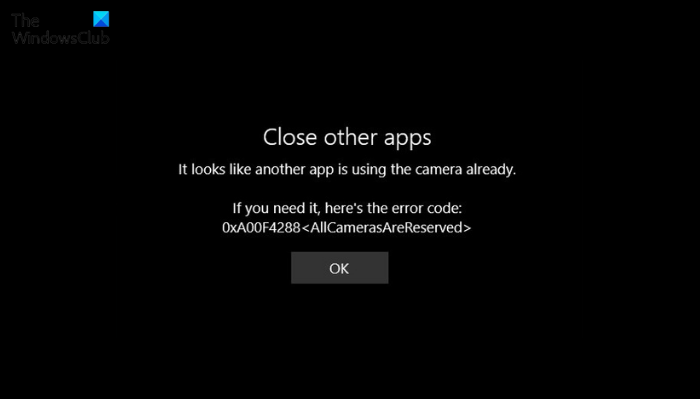
Encountering the error code 0xa00f4288 with the message “All Cameras Are Reserved” on your Windows 11 or Windows 10 PC can be a frustrating experience. This error typically arises when you attempt to launch your camera application, preventing you from using your webcam for video calls, recording, or any other camera-dependent tasks. The error message itself, often presented in a pop-up window, suggests that another application might already be utilizing the camera, thus locking it and making it unavailable for your current use.
This issue indicates a conflict or a problem within the system’s management of camera resources. It could stem from various underlying causes, ranging from temporary software glitches to more persistent configuration problems. If you are facing this error and are unable to access your camera, this guide provides a comprehensive set of solutions to help you diagnose and resolve the 0xa00f4288 error.
Effective Solutions to Resolve Camera Error 0xa00f4288
Here are several effective troubleshooting steps you can take to address the “All Cameras Are Reserved” error and regain access to your camera on your Windows PC. We recommend trying these solutions in the order presented, as they progress from simpler to more advanced techniques.
1. Restart Your System
The simplest and often surprisingly effective first step in troubleshooting many computer issues, including camera errors, is to restart your Windows 11 PC. A system restart can resolve temporary glitches or conflicts that might be causing the camera to be incorrectly marked as ‘reserved’. When you restart your computer, it clears the current state of the operating system and all running applications, giving everything a fresh start.
Many users have reported that a simple reboot is sufficient to eliminate the 0xa00f4288 error. This is because temporary software conflicts or processes that were inadvertently holding onto the camera resource are terminated during the restart process.
To restart your Windows 11 system:
- Click on the Start Menu icon, typically located at the bottom left corner of your screen on the taskbar.
- Select the Power icon.
- Choose Restart from the power options.
- Allow your computer to complete the restart process fully.
- Once restarted, attempt to open your camera application again to see if the error is resolved.
If restarting your system does not fix the “All Cameras Are Reserved” error, proceed to the next troubleshooting step.
2. Repair the Camera Application
Windows 11 and Windows 10 include a built-in repair feature for system applications, including the Camera app. This feature can be used to fix potentially corrupted or missing system files that might be contributing to the 0xa00f4288 error. Repairing the application essentially attempts to restore the app to its intended working state without deleting your personal data.
If the repair function does not resolve the issue, Windows also provides a reset option. Resetting the Camera application will revert it to its default installation settings, which can often clear out any misconfigurations causing the error. Note that resetting may delete app data, though for the Camera app, this usually pertains to settings rather than personal files.
Steps to Repair or Reset the Camera Application:
- Open the Settings application. You can do this by pressing the Windows key + I on your keyboard simultaneously.
- In the Settings window, click on Apps.
- Select Installed apps (or Apps & features in some versions of Windows 10).
- Locate the Camera application in the list of installed apps. You may need to scroll down or use the search bar to find it quickly.
- Click on the three dots (ellipsis) menu icon that is usually located to the right of the Camera app name.
- Select Advanced options from the dropdown menu.
- In the Advanced options page for the Camera app, look for the Repair section and click the Repair button.
- Wait for the repair process to complete. Windows will attempt to fix any issues with the application.
- After the repair is finished, check if the camera error is resolved by launching the Camera app.
- If the error persists after repairing, return to the Advanced options page for the Camera app and this time, locate the Reset section. Click the Reset button.
- Confirm your decision if prompted, understanding that resetting will revert the app to its default settings.
- Once the reset is complete, test the Camera app again.
If repairing or resetting the Camera application doesn’t resolve the 0xa00f4288 error, continue with the next solution.
3. Adjust Camera Privacy Permissions
Incorrect or restrictive privacy permissions can prevent applications from accessing your camera, potentially leading to the “All Cameras Are Reserved” error. Windows 11 and Windows 10 have privacy settings that control which applications are allowed to use your camera. It’s important to ensure that camera access is enabled both for the system overall and for individual apps that need to use it.
Sometimes, after a system update, these permissions might be inadvertently altered or reset, causing camera access issues. Verifying and adjusting these settings can be a crucial step in resolving the error.
Steps to Check and Modify Camera Privacy Permissions:
- Open the Settings application by pressing Windows key + I.
- Click on Privacy & security.
- On the left-hand menu, find and select Camera under the “App permissions” section.
- First, ensure that the toggle switch under “Camera access” or “Let apps access your camera” is turned On. This setting controls whether applications are permitted to access the camera at all.
- Scroll down to the section “Let apps access your camera” or “Choose which apps can access your camera”. Here you will see a list of applications. Ensure that the toggle switch next to “Let apps access your camera” is enabled.
- Review the list of apps below and make sure that the application you are trying to use with the camera (and the Camera app itself) has permission to access the camera. Toggle the switch to On for any apps that require camera access.
- It’s also advisable to check the setting “Let desktop apps access your camera” and ensure it is also On if you are using desktop applications that need camera access.
- After adjusting these settings, close the Settings window and try to use your camera again to see if the error is resolved.
If adjusting privacy permissions does not fix the error, proceed to the next troubleshooting method.
4. Run the Camera Troubleshooter
Windows 11 and Windows 10 include a suite of built-in troubleshooters designed to automatically diagnose and resolve common system problems. The Camera troubleshooter is specifically designed to identify and fix issues related to camera functionality. Running this troubleshooter can automatically detect and resolve minor software conflicts or configuration errors that may be causing the 0xa00f4288 error.
This tool is particularly useful for less technically inclined users as it automates the diagnostic and repair process. It checks for common problems such as driver issues, service conflicts, and incorrect settings.
Steps to Run the Camera Troubleshooter:
- Open the Settings application.
- Click on System.
- Select Troubleshoot.
- Click on Other troubleshooters.
- Scroll down to find Camera in the list of troubleshooters.
- Click the Run button next to Camera.
- The troubleshooter will start diagnosing your system for camera-related issues. Follow any on-screen instructions provided by the troubleshooter. It may automatically apply fixes or suggest actions you need to take.
- Once the troubleshooter has completed, close the troubleshooter window and restart your computer.
- After restarting, test your camera to see if the 0xa00f4288 error is resolved.
If the Camera troubleshooter does not resolve the issue, move on to the next solution.
5. Update Camera Drivers
An outdated or corrupted camera driver is a frequent cause of camera malfunctions, including the “All Cameras Are Reserved” error. Drivers are software components that enable your operating system to communicate with hardware devices, such as your webcam. Ensuring you have the latest and correctly functioning drivers is crucial for proper camera operation.
Updating your camera driver to the latest version can resolve compatibility issues, fix bugs, and improve performance, potentially eliminating the 0xa00f4288 error.
Steps to Update Your Camera Driver:
- Right-click on the Start Menu button (Windows icon) and select Device Manager.
- In the Device Manager window, find and expand the category labeled Cameras.
- You should see your webcam listed under this category. It might be listed as “Integrated Webcam,” “USB Camera,” or the specific model name of your camera.
- Right-click on your camera device and select Update driver.
- In the “Update Drivers” window, you will be presented with two options:
- Search automatically for drivers: Windows will search your computer and the internet for the latest driver software for your device.
- Browse my computer for drivers: If you have already downloaded a driver from the manufacturer’s website, you can select this option to install it.
- It is generally recommended to choose “Search automatically for drivers” first. Windows will attempt to find and install the most suitable driver.
- If Windows finds an updated driver, it will download and install it automatically. Follow any on-screen instructions.
- If Windows does not find a new driver, or if you prefer to get the latest driver directly from the manufacturer, you can visit the website of your computer or webcam manufacturer (e.g., Dell, HP, Lenovo, Logitech, etc.) and search for drivers for your specific model. Download the latest camera driver available for your operating system.
- If you downloaded a driver from the manufacturer, run the downloaded file to install the driver.
- After updating the driver (or if no update was found), restart your computer.
- Check if the camera error 0xa00f4288 is resolved after the driver update.
6. Temporarily Disable Antivirus Software
In some instances, third-party antivirus software can interfere with the normal operation of the camera, leading to the “All Cameras Are Reserved” error. Certain antivirus programs might mistakenly flag the camera application or related processes as suspicious or block camera access as part of their security measures.
To determine if your antivirus software is the cause, you can temporarily disable it and check if the camera error disappears. If disabling the antivirus resolves the issue, you will need to configure your antivirus settings to allow the Camera application to function correctly.
Steps to Temporarily Disable Antivirus and Check Camera Functionality:
- Locate the icon for your antivirus software in the system tray (usually in the bottom right corner of your taskbar).
- Right-click on the antivirus icon.
- Look for an option to disable, turn off, or exit the antivirus program temporarily. The exact wording will vary depending on your antivirus software.
- Select the option to disable it. You might be asked to specify a duration for disabling or confirm your action. Choose a short duration, like 15-30 minutes, for testing purposes.
- After disabling the antivirus, attempt to use your camera application again and see if the 0xa00f4288 error is gone.
- If the camera works correctly after disabling the antivirus, this indicates that your antivirus software is likely the cause of the problem.
- Important: Remember to re-enable your antivirus software immediately after testing to maintain your system’s security.
- To permanently resolve the issue if the antivirus is the cause, you will need to configure your antivirus settings. This might involve adding the Camera application to an exclusion list, creating a rule to allow camera access, or adjusting webcam protection settings within your antivirus software. Consult your antivirus software’s documentation for specific instructions on how to manage these settings.
7. Close Conflicting Applications
The error message “All Cameras Are Reserved” explicitly suggests that another application might be using the camera. Certain applications, especially those related to video conferencing, streaming, or recording, can access and utilize your camera. If such an application is running in the background or has not closed properly, it might be holding onto the camera resource, preventing other applications from using it.
Ensuring that no other applications are actively using or reserving the camera can resolve the 0xa00f4288 error.
Steps to Close Potentially Conflicting Applications:
- Check the System Tray: Look at the system tray (bottom right corner of your taskbar) for icons of applications that might be using the camera, such as video conferencing apps (e.g., Skype, Zoom, Microsoft Teams, Google Meet), streaming software, or recording tools. Right-click on these icons and select Exit or Quit to close them completely.
- Use Task Manager: Press Ctrl + Shift + Esc to open Task Manager.
- In Task Manager, go to the Processes tab (or Details tab in some versions of Windows).
- Look for applications that might be using the camera. Common examples include video conferencing apps, communication software, and any recently used applications that might access the camera.
- Select any suspicious applications and click the End task button to forcefully close them. Be cautious not to end tasks for system processes unless you are sure they are related to the conflicting application.
- After closing potential conflicting applications, try to use your camera again.
Frequently Asked Questions about Camera Error 0xa00f4288
What is the primary cause of the “All Cameras Reserved” error?
The “All Cameras Reserved” error, often indicated by error code 0xa00f4288, is frequently caused by an outdated camera driver. When the driver software that enables communication between your camera and the operating system is outdated, it can lead to conflicts and improper resource management, resulting in this error. However, other factors can also contribute, including software conflicts, incorrect privacy settings, or interference from antivirus programs.
To fix driver-related issues, it is recommended to update to the latest camera driver. If driver updates do not resolve the problem, resetting the camera application to its default settings can also help clear out any misconfigurations.
How can I generally troubleshoot camera issues on Windows 11?
Troubleshooting camera problems on Windows 11 involves a systematic approach to identify and resolve potential causes. Here are general steps you can take to fix camera issues:
- Check Physical Connections: If using an external webcam, ensure it is properly connected to the USB port. Try a different USB port to rule out port issues.
- Update Camera Drivers: As mentioned, outdated drivers are a common culprit. Update to the latest drivers through Device Manager or the manufacturer’s website.
- Reinstall Camera Drivers: If updating doesn’t work, try uninstalling the driver from Device Manager and then restarting your computer to allow Windows to reinstall it automatically.
- Verify Privacy Settings: Ensure that camera access is enabled in Windows Privacy settings for both overall access and for specific applications.
- Temporarily Disable Antivirus: Test if your antivirus software is interfering by temporarily disabling it and checking camera functionality.
- Reset Camera Application: Reset the Camera app to its default settings through the Apps settings in Windows.
- Run Troubleshooters: Utilize the built-in Camera troubleshooter to automatically diagnose and fix common problems.
- Restart Your Computer: A simple restart can often resolve temporary software glitches.
If these steps do not resolve your camera issues, there might be more complex underlying problems, possibly related to hardware or deeper system configurations. In such cases, seeking professional technical support might be necessary.
We hope these solutions help you resolve the Windows 11 camera error 0xa00f4288 and restore your camera functionality. If you continue to experience issues or have found other solutions that worked for you, please share your experiences in the comments below!
Post a Comment