Customize Your Excel: A Quick Guide to Changing Worksheet Tab Colors
Microsoft Excel worksheets often contain vast amounts of data, and navigating through multiple sheets can become challenging. By default, worksheet tabs are presented in a simple white color, which can make it difficult to quickly identify the sheet you need, especially when working with numerous tabs. However, Excel offers a simple yet powerful customization feature that allows you to add color to your worksheet tabs. This visual enhancement can significantly improve your workflow and organization within your spreadsheets.
Adding color to your worksheet tabs is a straightforward process that can dramatically increase the visual organization of your Excel workbooks. Imagine managing a complex project with various data categories spread across multiple worksheets. Instead of relying solely on tab names, color-coding allows for instant visual recognition. For instance, you might assign blue to tabs related to sales data, green for marketing information, and red for financial reports. This visual cue helps you quickly locate the necessary information, saving valuable time and reducing the chances of errors.
Excel provides a range of color options to suit your preferences and organizational needs. You can choose from Theme Colors, which align with your overall Excel theme for a cohesive look, or select from a palette of Standard Colors for bolder distinctions. For even greater customization, the “More Colors” option opens up a vast spectrum, allowing you to pick precise hues or even create custom colors to perfectly match your system. This level of flexibility ensures that you can create a color-coding system that is both functional and aesthetically pleasing.
Change the Color of a Single Excel Worksheet Tab
Coloring a single worksheet tab is a quick and easy way to highlight specific sheets that require immediate attention or represent key data sets. This is particularly useful when you want to draw focus to a summary sheet, a worksheet containing critical calculations, or a sheet that is currently under active editing. The process involves just a few clicks and can be done directly from the Excel interface.
Here are the steps to change the color of a single worksheet tab:
-
Select the Target Worksheet Tab: Begin by clicking on the worksheet tab you wish to color. This activates the worksheet and prepares it for color customization. The selected tab will typically appear slightly lighter or highlighted compared to other tabs.
-
Access the Format Menu: Navigate to the Home tab on the Excel ribbon. Within the Home tab, locate the Cells group. In the Cells group, you will find the Format dropdown menu. Click on Format to open the dropdown options.
-
Choose Tab Color Option: In the Format dropdown menu, hover your mouse over the Tab Color option. This will expand a submenu displaying a palette of available colors.
-
Select Your Desired Color: From the Tab Color submenu, choose the color you want to apply to the selected worksheet tab. You can select from Theme Colors, Standard Colors, or choose More Colors for a wider range of options including custom color creation. Click on your chosen color.
-
Observe the Color Change: After selecting a color, the change might not be immediately apparent on the currently selected tab. The color becomes more visible when you select a different worksheet tab. The color of the previously modified tab will then be displayed prominently. This is because the selected tab is designed to appear white for readability of the sheet name.
Alternatively, you can also change the tab color using a right-click shortcut:
-
Right-Click the Worksheet Tab: Right-click directly on the worksheet tab you want to color. This will open a context menu.
-
Select Tab Color from Context Menu: In the context menu, hover over the Tab Color option. This will again expand a submenu displaying the color palette.
-
Choose Your Color: Select your desired color from the palette, just as you would using the Format menu method.
-
Observe the Color Change: Similar to the previous method, the color will be more visible when you deselect the tab by clicking on another worksheet tab.
Color Multiple Worksheet Tabs at Once in Excel
For projects with many related worksheets, coloring multiple tabs simultaneously can streamline the organization process and ensure consistency in your visual coding. This is particularly useful when you want to group worksheets by category, project phase, or data type. Excel allows you to select and color multiple tabs together, saving time and effort compared to coloring each tab individually.
Here’s how to color multiple worksheet tabs at the same time:
-
Select the First Worksheet Tab: Begin by clicking on the first worksheet tab in the group you want to color. This will be the starting point for your multiple tab selection.
-
Select Additional Tabs Using Shift Key: Press and hold down the Shift key on your keyboard. While holding Shift, click on the last worksheet tab in the range you want to color. This action will select all the worksheet tabs between the first tab you clicked and the last tab you clicked, forming a group selection. All selected tabs will appear highlighted.
-
Right-Click on a Selected Tab: With the group of worksheet tabs selected, right-click on any one of the selected tabs. This will open the context menu for the group of tabs.
-
Choose Tab Color from Context Menu: In the context menu, hover over the Tab Color option. This will open the color palette submenu.
-
Select Your Desired Color: Choose the color you want to apply to all the selected worksheet tabs from the palette. Click on your chosen color.
-
Observe the Color Change: All the worksheet tabs you selected will now be colored with the chosen color. The color will be more prominently displayed when you select a worksheet tab that is not part of the colored group.
Using the Shift key is effective for selecting a contiguous range of tabs. If you need to select non-adjacent tabs to color together, you can use the Ctrl key instead of Shift.
To select non-adjacent tabs for coloring:
-
Select the First Worksheet Tab: Click on the first worksheet tab you want to color.
-
Select Non-Adjacent Tabs Using Ctrl Key: Press and hold down the Ctrl key on your keyboard. While holding Ctrl, click on each additional worksheet tab you want to include in your selection. Each tab you click while holding Ctrl will be added to the selection, regardless of its position relative to the previously selected tabs.
-
Right-Click and Choose Tab Color: Once you have selected all the desired non-adjacent tabs using the Ctrl key, right-click on any of the selected tabs. Then, follow steps 4-6 from the contiguous tab coloring method (choose Tab Color from the context menu and select your color).
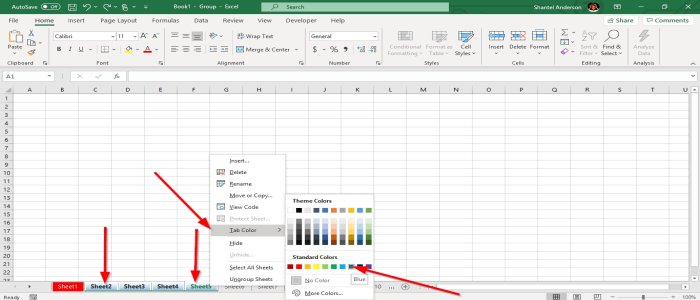
Exploring Color Options: Theme Colors, Standard Colors, and More Colors
Excel provides a flexible color selection system that allows you to choose from pre-defined palettes or create your own custom colors. Understanding the different color options can help you create a visually consistent and effective color-coding scheme for your worksheets.
Theme Colors
Theme Colors are designed to harmonize with the overall theme applied to your Excel workbook. These colors are typically a set of coordinated shades and tones that are visually appealing and professionally styled. Using Theme Colors ensures that your tab colors integrate seamlessly with the general look and feel of your spreadsheet. If you change the overall theme of your Excel workbook, the Theme Colors used for your tabs will automatically update to reflect the new theme, maintaining visual consistency.
Standard Colors
Standard Colors offer a set of bolder, more distinct colors that are readily recognizable and provide clear visual differentiation. These colors are not tied to the workbook’s theme and remain constant regardless of theme changes. Standard Colors are useful when you need strong visual cues to distinguish between different categories of worksheets, as they offer greater contrast and stand out more prominently than Theme Colors. Examples of Standard Colors include red, blue, green, yellow, and black.
More Colors: Customizing Your Palette
For ultimate control over your tab colors, Excel’s “More Colors” option allows you to access a wider spectrum of hues and even create completely custom colors. When you select “More Colors” from the Tab Color menu, a Colors dialog box appears, offering two tabs: Standard and Custom.
-
Standard Tab (within More Colors): This tab presents a honeycomb-like grid of a broader range of standard colors than the initial palette. You can select from this extended grid for more color choices within the standard spectrum.
-
Custom Tab (within More Colors): This is where you can create truly unique colors. The Custom tab provides options to define colors using various color models, such as:
- RGB (Red, Green, Blue): You can specify the intensity of red, green, and blue light (values from 0 to 255) to create any color imaginable.
- HSL (Hue, Saturation, Lightness): This model allows you to define color based on hue (the base color, like red, green, or blue), saturation (the intensity or purity of the color), and lightness (how light or dark the color is).
Using the Custom tab, you can precisely match colors to your brand guidelines, project requirements, or personal preferences. You can save custom colors for later use, ensuring consistency across multiple workbooks.
Benefits of Color-Coding Worksheet Tabs
Implementing a color-coding system for your Excel worksheet tabs offers several practical advantages that can enhance your productivity and data management:
-
Improved Visual Organization: Color-coding transforms a visually monotonous row of tabs into a clearly structured and easily navigable system. Colors act as visual cues, making it faster to locate specific worksheets within a large workbook.
-
Faster Worksheet Identification: Instead of reading each tab name to find the sheet you need, you can quickly scan for a specific color. This is especially beneficial when working with numerous worksheets or under time constraints.
-
Enhanced Workflow Efficiency: Reduced time spent searching for worksheets translates directly into increased efficiency. Color-coding streamlines navigation and allows you to focus more on data analysis and manipulation rather than file management.
-
Reduced Errors: Quick and accurate worksheet identification minimizes the risk of accidentally working in the wrong sheet, which can lead to errors in data entry, formulas, or analysis.
-
Categorization and Grouping: Colors can be used to visually group related worksheets together. For example, all worksheets pertaining to a specific project phase, department, or data category can be assigned the same color, making it easy to see the overall structure of your workbook at a glance.
-
Prioritization and Focus: You can use color to highlight important worksheets that require immediate attention or contain critical information. For instance, using a bright color for a summary sheet or a sheet with key performance indicators (KPIs) can draw focus to the most relevant data.
-
Personalized Workspace: Color-coding allows you to personalize your Excel workspace and tailor it to your individual working style and organizational preferences. This can make working with spreadsheets more enjoyable and less daunting.
Which Menu is Used to Change the Color of Worksheet Tab?
The menu used to change the color of a worksheet tab in Microsoft Excel is the Format menu, located within the Cells group on the Home tab of the Excel ribbon. Alternatively, you can access the Tab Color option by right-clicking directly on the worksheet tab itself, which opens a context menu containing the Tab Color option.
Both methods lead to the same color selection palette, allowing you to choose from Theme Colors, Standard Colors, or access the “More Colors” dialog box for a wider range of options and custom color creation. The ribbon method is accessed through the standard menu structure, while the right-click method offers a quicker shortcut directly from the worksheet tab itself.
In summary, customizing worksheet tab colors in Excel is a simple yet highly effective way to enhance visual organization, improve workflow efficiency, and reduce errors. By leveraging the color options and techniques described, you can transform your spreadsheets into more user-friendly and visually informative tools.
Ready to bring more color into your Excel spreadsheets? What color-coding strategies do you find most effective for your work? Share your tips and experiences in the comments below!
Post a Comment