Maximize Performance: Key Considerations Before Upgrading Your RAM
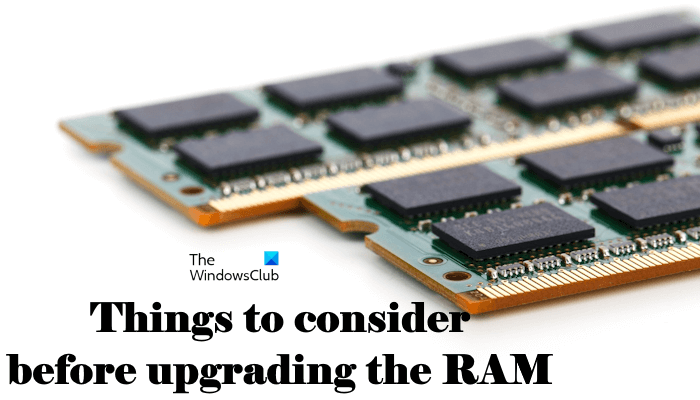
Upgrading components within your computer is a common approach to enhancing its speed and overall responsiveness. Among the most popular and often effective hardware upgrades is increasing the amount of Random Access Memory (RAM). More RAM generally allows your system to handle more tasks simultaneously and manage larger datasets, reducing reliance on slower storage for temporary data. However, simply buying new RAM and plugging it in isn’t always the guarantee of a performance boost you might expect. There are several crucial factors to evaluate beforehand to ensure your upgrade is compatible, necessary, and provides the desired improvement.
Before you invest in new RAM modules, take the time to assess your current system and understand how RAM interacts with other components. Skipping these steps could lead to purchasing incompatible parts, encountering new system instability, or finding that the performance gain is negligible because another part of your system is the true bottleneck. A thoughtful approach will save you time, money, and frustration, ensuring your upgrade is successful and truly maximizes your computer’s potential.
Essential Factors to Evaluate Before a RAM Upgrade
Upgrading RAM can significantly improve system performance, especially for multitasking, running demanding applications, and loading large files. However, its effectiveness hinges on compatibility and whether RAM is genuinely the limiting factor in your system. These are the key considerations you must address before proceeding with a RAM upgrade.
1. How Much RAM Do You Currently Have?
Understanding your current RAM configuration is the fundamental first step. The amount of RAM installed dictates how many applications you can run concurrently and how smoothly they operate, particularly memory-intensive programs. Standard configurations vary widely, from 4GB found in older or budget systems, 8GB which is often considered a minimum for basic modern use, to 16GB, 32GB, or even more for demanding tasks like high-end gaming, video editing, or software development.
Identifying your current RAM amount is straightforward. In Windows, you can right-click on the Start button and select “System,” or open the Task Manager (Ctrl+Shift+Esc) and navigate to the “Performance” tab, selecting “Memory.” This will show you the total installed RAM. Knowing this baseline is crucial because it informs whether an upgrade is likely to make a difference and helps you decide on the target capacity for your upgrade. For example, moving from 4GB to 8GB typically provides a noticeable improvement for general use, while going from 16GB to 32GB might only benefit specific heavy workloads.
2. Analyze Your Current RAM Usage
Merely knowing how much RAM you have isn’t enough; you also need to understand how much you use. Your system’s actual RAM usage under typical load conditions is a strong indicator of whether you are frequently running out of memory. When your system exhausts available RAM, it starts using the page file on your storage drive (SSD or HDD) as virtual memory. This process, known as “paging” or “swapping,” is significantly slower than accessing physical RAM and leads to noticeable slowdowns, stuttering, and decreased responsiveness.
To analyze usage, open Task Manager (Ctrl+Shift+Esc) and go to the “Performance” tab, then click on “Memory.” Observe the “In Use” and “Available” values while you are working on your computer as you normally would – with multiple applications open, browsing the web with many tabs, or running a demanding program. If you consistently see RAM usage near the maximum capacity, especially without running your most intensive applications, or if you observe high “Hard faults/sec” (which indicates frequent paging), it’s a clear sign that more RAM would be beneficial. Monitoring usage over time provides empirical evidence to support the need for an upgrade.
3. Ensure Compatibility with Your Motherboard
Compatibility is arguably the single most critical factor when upgrading RAM. Not all RAM works with all motherboards. Several specifications must align perfectly for the new RAM to function correctly, or at all. The primary aspects of compatibility include the RAM generation (DDR3, DDR4, DDR5), the physical form factor (DIMM for desktops, SO-DIMM for laptops), the maximum supported speed (MHz), the maximum total capacity (GB), and the number of available slots.
Different generations of DDR (Double Data Rate) RAM are physically incompatible due to different notch locations on the module, preventing them from being inserted into the wrong type of slot. Furthermore, each motherboard is designed to support specific RAM speeds. Installing RAM faster than your motherboard supports will result in the RAM running at the motherboard’s maximum supported speed, not the RAM’s rated speed (unless XMP/DOCP profiles are utilized and supported). Exceeding the maximum total capacity the motherboard can address is also impossible. The most reliable way to determine compatibility is by consulting your motherboard’s user manual or visiting the manufacturer’s website and looking up your specific motherboard model. They will provide a detailed list of supported RAM types, speeds, capacities, and configurations.
4. Identify Potential Bottlenecks
A bottleneck occurs when the performance of one component limits the overall performance of the entire system, preventing other components from operating at their full potential. In the context of a RAM upgrade, this means that even if you install faster or more RAM, you won’t see a significant performance improvement if another component, such as a slow CPU or an outdated graphics card, is the primary constraint. The slower component becomes the “bottleneck,” effectively holding back the entire system’s speed.
Consider the scenario where you have an older, low-end CPU. While increasing RAM might help with multitasking slightly, the CPU’s limited processing power will still restrict how quickly tasks can be completed or how many frames per second (FPS) can be rendered in games. Similarly, in gaming, if your graphics card (GPU) isn’t powerful enough to render complex visuals, adding more system RAM won’t magically increase your FPS, as the GPU is the limiting factor. Before upgrading RAM, evaluate your CPU and GPU relative to your typical workload. If these components are significantly older or less powerful than the rest of your system, addressing those bottlenecks first might yield a more substantial performance gain than a RAM upgrade alone.
Here’s a simplified illustration of a potential bottleneck using a Mermaid diagram:
```mermaid
graph LR
A[CPU] → B[RAM]
B → C[Storage (SSD/HDD)]
C → B
B → D[GPU]
D → E[Display]
 subgraph System Flow
    A -- Processes Data --> B
    B -- Temporarily Stores Data --> C
    C -- Swaps Data --> B
    B -- Feeds Data --> D
    D -- Renders Output --> E
end

style A fill:#f9f,stroke:#333,stroke-width:2px
style D fill:#ccf,stroke:#333,stroke-width:2px

%% Example Bottleneck
A -- "Slow Processing Power" --> D
classDef bottleneck fill:#f9f,stroke:#f00,stroke-width:4px;
class A,D bottleneck;
```
This diagram illustrates how data flows through the system. If either the CPU (A) or GPU (D) is significantly slower than the other components, they can act as bottlenecks, limiting the overall system performance even if RAM (B) is fast.
5. Assess Your Storage Solution: SSD vs. HDD
The type of storage device your system uses (Solid State Drive - SSD or Hard Disk Drive - HDD) has a profound impact on overall system responsiveness, often more so than RAM, especially in systems with 8GB or more RAM. HDDs are mechanical drives with spinning platters and moving read/write heads, making them significantly slower for accessing data compared to SSDs, which use flash memory.
When a system runs low on RAM, it relies heavily on the storage drive for virtual memory (paging file). If your system uses an HDD, this paging process is extremely slow, leading to severe performance degradation, freezing, and long loading times. Upgrading to an SSD, even without increasing RAM, can dramatically improve boot times, application loading speeds, and the overall snappiness of the system by making virtual memory access much faster. If your system currently has an HDD, especially if it’s older, upgrading to an SSD is often the single most impactful performance upgrade you can make and should be considered before or alongside a RAM upgrade. If you already have an SSD, the benefit of adding more RAM will be more apparent when multitasking or handling large datasets that exceed your current RAM capacity.
Deeper Dive into RAM Specifications and Types
Understanding the different types and specifications of RAM is crucial for ensuring compatibility and choosing the right modules for your needs.
RAM Generations (DDR3, DDR4, DDR5):
Each generation offers improvements in speed, power efficiency, and capacity over its predecessor.
* DDR3: Older standard, typically found in systems from 2007-2014. Slower speeds (e.g., 1066MHz - 2133MHz). Lower voltage than DDR2, but higher than DDR4/DDR5.
* DDR4: Dominant standard for systems built roughly between 2014 and 2021. Faster speeds (e.g., 2133MHz - 4000+MHz). Lower voltage than DDR3.
* DDR5: The newest standard, becoming common in systems from 2021 onwards. Offers significantly higher speeds (e.g., 4800MHz upwards), improved power efficiency, and larger capacities per module.
Compatibility is strict: A DDR4 motherboard requires DDR4 RAM; DDR5 requires DDR5 RAM. You cannot mix generations.
Speed (MHz):
Measured in Megahertz, this indicates how many cycles the RAM can perform per second. Higher speeds generally mean faster data transfer, but the effective speed is limited by the motherboard’s support and the CPU’s memory controller. Dual-channel configurations (using two matched sticks of RAM) effectively double the theoretical bandwidth compared to single-channel, leading to a noticeable performance boost.
Latency (CL):
Measured in clock cycles, this indicates the delay between a command being issued and the data being available. Lower CAS Latency (CL) numbers are better (faster). While speed (MHz) is often prioritized, latency also plays a role in real-world performance. When comparing modules of similar speed, lower latency is preferable. However, comparing latency across different speeds or generations requires considering the absolute time (nanoseconds), which is calculated as (CAS Latency / Speed) * 2000.
Capacity (GB):
The total amount of data the RAM can hold. As discussed, more capacity is needed for multitasking and memory-intensive applications. Ensure the total capacity you plan to install does not exceed your motherboard’s maximum supported limit per slot and overall.
Here is a comparison of common RAM types:
| Specification | DDR3 | DDR4 | DDR5 |
|---|---|---|---|
| Year Approx | 2007 - 2014 | 2014 - 2021 | 2021 - Present |
| Voltage | 1.5V (standard), 1.35V (low voltage) | 1.2V (standard), 1.05V (low voltage) | 1.1V (standard) |
| Speed Range | 1066 - 2133+ MHz | 2133 - 4000+ MHz | 4800 - 8400+ MHz |
| Module Pins | 240-pin (DIMM), 204-pin (SO-DIMM) | 288-pin (DIMM), 260-pin (SO-DIMM) | 288-pin (DIMM), 262-pin (SO-DIMM) |
| Key Feature | Standard for its time | Improved speed & efficiency | Significant speed jump, PMIC on module |
Note: Speeds listed are typical ranges; specific modules and overclocking (via XMP/DOCP) can exceed these.
Choosing RAM involves balancing speed, latency, and capacity within your budget and motherboard’s capabilities. Often, a balance is best; very high speed with high latency might not perform as well as a slightly lower speed with tighter timings.
How to Choose the Right RAM for Your Upgrade
Once you’ve evaluated the factors above and determined that a RAM upgrade is necessary and compatible, you need to select the specific RAM modules.
- Check Motherboard Support: Reiterate the importance of the motherboard manual or website. Note the supported DDR generation, maximum speed, maximum capacity per slot, and total maximum capacity.
- Determine Required Capacity: Based on your usage analysis (point 2), decide how much total RAM you need (e.g., 16GB, 32GB).
- Choose Speed and Latency: Select RAM with a speed supported by your motherboard. Higher speeds (within budget and compatibility) are generally better. Look at the CAS Latency (CL) and consider the total latency in nanoseconds when comparing modules of similar speed.
- Consider Module Configuration: For dual-channel motherboards (most common), buying RAM in kits of two (e.g., 2x 8GB for 16GB total, or 2x 16GB for 32GB total) is recommended. Installing matched pairs in the correct slots specified by your motherboard manual enables dual-channel mode, significantly improving memory bandwidth. Avoid mixing and matching existing RAM with new RAM unless you can confirm compatibility, speed, and timing parity, as this can lead to instability or force all RAM to run at the speed of the slowest stick.
- Physical Size (Clearance): Some high-performance RAM modules come with tall heat spreaders. If you have a large CPU air cooler, ensure the RAM modules will fit without interfering with the cooler or fan.
- Reliable Brands: Purchase RAM from reputable manufacturers known for quality and reliability.
Addressing Common Questions About RAM Upgrades
People often have specific questions regarding the impact and priority of RAM upgrades compared to other components.
What Should I Upgrade After RAM?
The next upgrade after RAM depends entirely on the specific bottleneck in your system and your typical workload.
* If your system is still sluggish in general tasks or loading programs after a RAM upgrade and you’re using an HDD, upgrading to an SSD should be your top priority.
* If you experience slowdowns in CPU-intensive tasks (e.g., video encoding, complex simulations, strategy games) or frame drops in games despite sufficient RAM and an SSD, your CPU might be the bottleneck.
* If your primary goal is better gaming performance (higher FPS, better graphics settings), and your CPU is reasonably modern, upgrading your Graphics Card (GPU) will likely provide the most significant boost.
* Sometimes, multiple components might be limiting performance, requiring a more comprehensive system overhaul. Monitoring component usage during demanding tasks is key to identifying the next bottleneck.
Will Upgrading My RAM Increase FPS in Games?
Upgrading RAM can increase FPS in games, but it’s not a guaranteed or typically the most impactful upgrade for gaming compared to the CPU or GPU. Here’s how RAM affects gaming:
* Minimum FPS: More RAM or faster RAM can help reduce stuttering and improve minimum FPS, especially in open-world games or games that load large textures.
* Loading Times: Sufficient and fast RAM, combined with an SSD, speeds up game loading times.
* Multitasking: If you game while running other applications (like Discord, streaming software, web browsers), more RAM helps the system handle these tasks without impacting game performance as much.
* Integrated Graphics: Systems using integrated graphics (i.e., no dedicated GPU) rely on system RAM for video memory. In these cases, faster RAM and more RAM can have a more noticeable positive impact on gaming performance.
However, the CPU processes game logic and draws calls, and the GPU renders the vast majority of the graphics. If either of these is significantly underpowered for the game you’re playing, adding more or faster RAM will provide minimal benefit. Think of it this way: if your graphics card can only render 60 frames per second, having enough RAM to handle 100 frames won’t magically make the GPU faster. A RAM upgrade is most effective for gaming when your existing CPU and GPU are capable, but your system is struggling with memory capacity or speed, causing hitching or excessive loading times.
Here’s a relevant YouTube video that discusses the value of RAM upgrades in modern systems:
[Insert YouTube video embed code here - Need to search for a suitable video. Let’s use a placeholder and mention the topic.]
Search query for video: “ram upgrade worth it 2024” or “how much ram for gaming 2024”
Example relevant video (conceptual): Linus Tech Tips or Gamers Nexus discussing RAM vs other upgrades.
Let’s assume I found a relevant video and will represent it conceptually here.
Video Title: Is More RAM ACTUALLY Worth It? RAM Upgrade vs. SSD/CPU/GPU
Channel: [Relevant Tech Channel Name]
Description: This video explores when a RAM upgrade makes sense and compares its performance impact to upgrading other components like your SSD, CPU, or GPU in real-world scenarios and benchmarks.
While I cannot embed a live video here without the URL, this represents the type of valuable media that further explains the points discussed, offering visual demonstrations and benchmarks.
Potential Issues After Upgrading RAM
Even with careful planning, occasional issues can arise after installing new RAM. Knowing what to look for can help troubleshoot.
- System Won’t Boot / Black Screen: This is often a sign of incompatible or improperly seated RAM. Double-check that the RAM is fully pushed into the slots until the clips snap into place. Ensure the RAM is compatible with your motherboard model and that you are using the correct slots for your configuration (refer to the manual).
- Blue Screen Errors (BSOD): Memory-related BSODs (like MEMORY_MANAGEMENT or PAGE_FAULT_IN_NONPAGED_AREA) can indicate faulty RAM or instability due to incompatible timings or speeds, especially if you are trying to run RAM faster than its default profile via XMP/DOCP. Running a memory diagnostic tool (like Windows Memory Diagnostic) can help identify faulty sticks.
- System Instability or Crashes: Similar to BSODs, instability can point to compatibility issues or faulty RAM. Ensure your BIOS/UEFI is updated, as updates sometimes improve memory compatibility. If using XMP/DOCP, try disabling it to see if the system is stable at default speeds.
- System Only Recognizes Partial RAM: This usually indicates that one or more sticks are not detected, potentially due to improper seating, a faulty slot on the motherboard, or a faulty RAM module. Check each stick individually if necessary.
If you encounter issues, systematically troubleshoot by reseating the RAM, testing sticks one by one, checking compatibility again, and resetting BIOS settings if needed.
Conclusion
Upgrading your computer’s RAM can be a highly effective way to boost performance, particularly for multitasking and demanding applications. However, it is not a universal fix for all performance issues. A successful and beneficial RAM upgrade requires careful consideration of your current system’s components, your typical usage patterns, and the strict compatibility requirements of your motherboard.
Before making a purchase, determine how much RAM you currently have and, more importantly, how much you actually use. Verify that the new RAM is fully compatible with your motherboard regarding generation, speed, capacity, and form factor. Crucially, identify any potential bottlenecks in your system, such as an older CPU or GPU, which might limit the impact of a RAM upgrade. Remember that upgrading from an HDD to an SSD often provides a more noticeable overall system performance boost than a RAM upgrade, especially on systems still using mechanical drives.
By taking the time to evaluate these factors, you can make an informed decision, avoid potential pitfalls, and ensure your investment in new RAM truly maximizes your computer’s performance for your specific needs.
Have you recently upgraded your RAM? What factors did you consider, and what was the impact on your system’s performance? Share your experiences and tips in the comments below!
Post a Comment